


Discord is mainly a virtual hub for communication through chatting, calling, and gaming, mainly used by teens and young adults. Though it is a fantastic communication platform, you may get harmful and inappropriate messages from some users. It is entirely unexpected for any user, and that’s when knowing how to see deleted Discord messages comes into the game.
Generally, Discord won’t allow you to go through the deleted messages as it goes against their terms and conditions. But by installing the “Better Discord” and using various bots, you can see the deleted messages. You shouldn’t try this until your back is on the wall, and it is your only option out there.
How to See Deleted Discord Messages – The Methods with Step-by-Step Processes
You can get threatening messages or get harassed by someone on Discord. If you want to take legal actions against them, you must show the proof of that incident to the authority. But the people who sent those messages can instantly delete those, leaving no evidence of the threat.
At that moment, recovering those messages becomes essential. But remember, the methods won’t retrieve the deleted messages before you apply the methods. After applying the methods below, you can track the record of the deleted messages from any Discord server.
The Methods to follow are:
Method-1: Take Screenshot of the Messages
It is the primary precaution for retrieving the deleted messages from a Discord server. When you get any threat or harassing messages from someone, just take a screenshot and save it to your gallery. When required, just share the screenshot evidence with the legal authority to take action.
But there are some problems as you won’t always see the messages right after those are sent. Between sending and your seeing time, the sender can delete the messages as well. At that moment, screenshots won’t be an option, and that’s why our following method will be a gamechanger.
Method-2: Install Better Discord and Use Plug-ins
There are some steps to follow for completing the task, and those steps are:
Step-1: Install Better Discord
The first task is installing “Better Discord,” and you will find it on the website of this very software. There will be an option named “Download,” and press it to download the software. After downloading, you will see three options; the first one will be “Install Better Discord.”

The other two are for repairing and uninstalling “Better Discord” if you ever need to perform any of those two tasks. After selecting the first option, click on “Next,” select “Discord,” and then press the “Install” button.
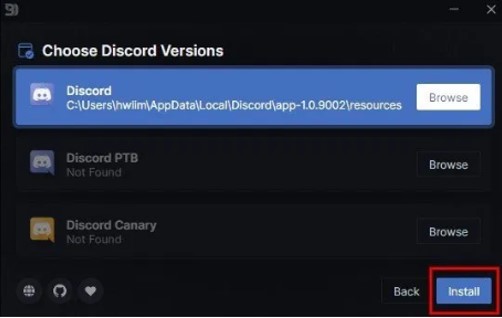
Step-2: Download, Add, and Enable the MessageLoggerV2 to the Plugins Folder
After installing, Discord will launch automatically, and then you will have to download the MessageLogger V2 plug-in. Go to the website of GitLab and find the plug-in or click on the link (https://_lighty_.gitlab.io/bdstuff/?plugin=MessageLoggerV2). Then press the “Download” button to download the plugins on your PC for further actions.
When downloading is done, you will have to add it to the plugins folder. At first, you must open the Discord app and scroll down the left-side menu bar until you see the option named “Plugins.” Clicking on it will open up the plugin library, and from this newly opened section, click on “Open Plugins Folder.”
Then from the files section, open up the folder in which the MessageLoggerV2 is saved. The following task is just to drag and drop the MessageLoggerV2 file to the plugins folder.
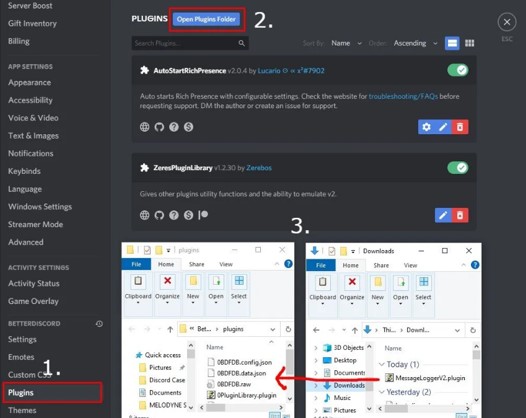
After doing all these, there comes the part of enabling the MessageLoggerV2 to the plugins folder. There will be a slider beside the MessageLoggerV2 section, and you need to turn it on as it will become green with a tick sign in it. At the same time, a notification containing a “Missing Libraries” message will pop up on the screen.
When it appears, you need to press the “Download” button as commanded to download the missing pieces. After dealing with this issue, there will be two more sections below which are still disabled. You must turn the slider green to enable those two crucial sections named as XenoLib and ZeresPluginLibrary.
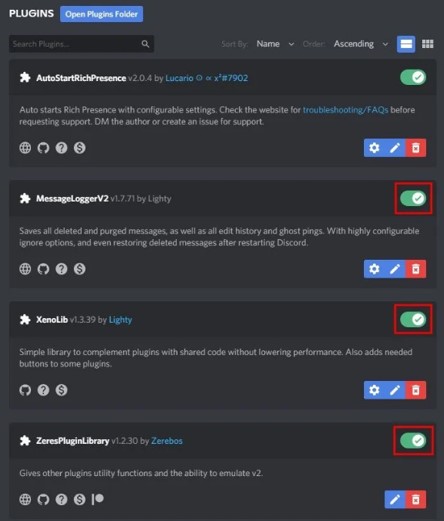
Step-3: Open Server Logs
The task is almost done, and you need to enter any of the servers from your Discord account. As you enter any server, you will find an option on the top of the Discord window as “Test Poll” with a dropdown icon. Click on that icon, and it will bring up a new small window containing various options.
The last one of those options will be “Message Logger,” and you must right-click on it. It will bring up another option panel containing more or less five options. In this part, the first option is the desired one named “Open Logs,” and you need to press it. This will sum up things to let you see the deleted and edited messages from that server.
You will also be able to see “Purged” and “Ghost Pings” messages with the help of it. Whenever any message is deleted, you will get a Discord deleted message notification popping up on your screen. You will receive same notifications for the edited, purged, and ghost pings messages.
Method-3: Using Various Bots
There are many bots available for accessing the deleted and edited messages from the Discord server. Among those bots for deleted message retrieving, some are free, and some are paid. The most popular bot for this task is the “Dyno Bot,” and you will get it for free. This bot is available on its official website.
If you feel the “Dyno Bot” is a bit heavy one to use, you can use a lighter bot named “Logger Bot.” It is also a free one and is available on its website from where you can easily download and use it. For both these two bots, you need to add them to the desired server and set up as recommended in their respective websites.
Another bot is “YAGPDB Bot,” which will let you see up to ten deleted messages. If you want to access the more deleted messages, you need to pay for the upgrading task.
Discord: Delete all your chat messages quickly!
How to See Deleted Images on Discord Mobile
Step-1: Access the “User Settings” section first from your Discord account’s “Profile” section.
Step-2: From there, you need to click on the cog icon and then choose the “Blue Mods” option. After doing so, you will have to tap on the “Chats” option.
Step-3: There will be a pop-up on your mobile screen, and you must select “Deny” from there instantly. Then you need to choose the “Anti Message Delete” option to go further in your mission to see deleted Discord messages on Discord mobile.
Step-4: The following task is enabling the Block Delete + Log option. When you complete all the steps above, you will be able to see the deleted Discord messages on your mobile device.
Final Thoughts
Retrieving and seeing the deleted Discord messages are always against the terms and ethics of Discord. But you may get into a situation where it is a must for you to retrieve the deleted messages from your server. In this case, learning how to see deleted Discord messages becomes vital to take legal steps.
But you should not ever use deleted messages to blackmail someone. Whenever you try to retrieve the deleted Discord messages, you will have to do it at your own risk.