

It’s common knowledge that every PC requires an operating system to function. Now, many users use a password on their PC to protect their data from unauthorized persons. Although this password provides good security, forgetting this password often creates a problematic situation for the owner.
Most of us have no idea how to reset password in windows 7 without logging in. The simplest method to recover the password is to use a reset disk. Unfortunately, many of us are unaware of this feature. Luckily, there are other methods to reset the password, and they are pretty easy as well.
How to Reset Windows 7 Password Without Reset Disk?
If you forget your windows 7 password and don’t have any reset disk, you can first try to guess the password a few times. If you cannot guess then try any of the below-mentioned methods.
Method 1: How to Reset Windows 7 Login Password Using Command Prompt?
Windows 7 comes with a built-in administrator account. It is easy to reset your Windows 7 login password using the command prompt.
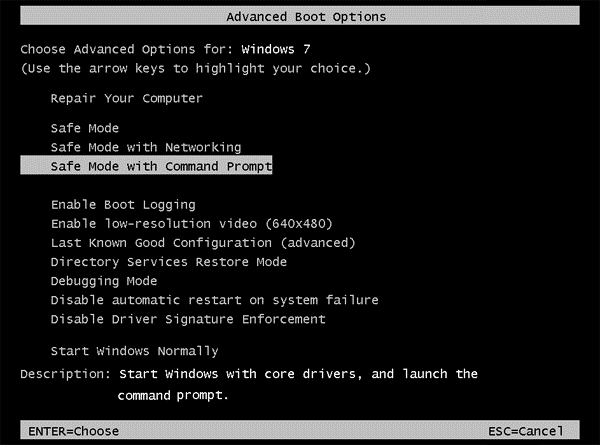
Step 1: Start your computer. Wait for the Advanced Boot Options window, don’t release the f8 key until the window appears. You can use arrow keys and select “Safe Mode with Command Prompt.” Press enter.
Step 2: Check the login screen. The hidden Administrator account should be shown. Login here, and you will get access to the command prompt.
Step 3: Run the command as per below. Now, you will be able to reset your password smoothly.
net user username new_password

But keep in mind that this method works only if a hidden administration account is enabled.
How to Reset Windows 7 Password without any Software or Bootable USB/CD/DVD media.
Method 2: How To Reset Windows 7 Password With A Windows Installation Disk?
First, you will require a copy of the windows 7 installation disk. Then follow the processes given below-
Step 1: Open the CD ROM drive. Insert the disk.
Step 2: Boot the installation disk.
Step 3: Select Repair your computer.
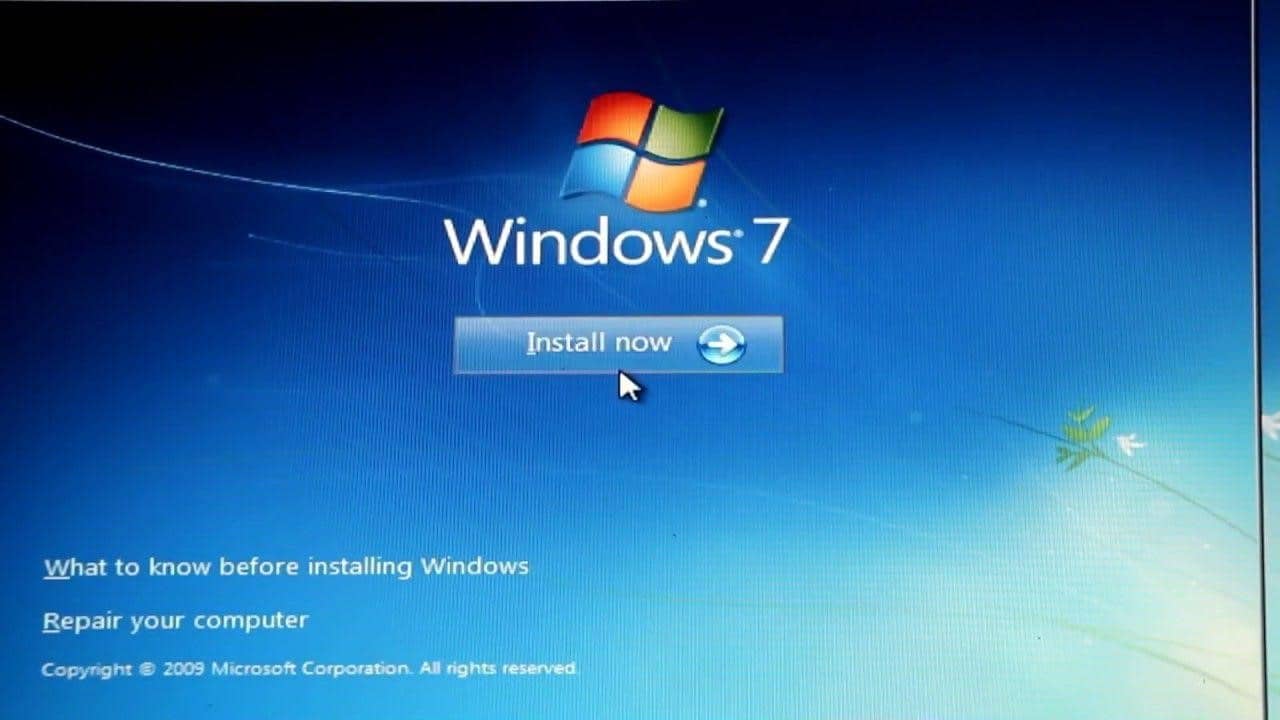
Step 4: Check the list of recovery tools. Select Command Prompt.
Step 5: Now, if you did not install windows in C drive, replace drive name with C. Otherwise, keep C. Then insert the following commands one by one. Press Enter after inserting each command.
c:
cd windows
cd system32
ren sethc.exe sethc.exe.bak
copy cmd.exe sethc.exe

Step 6: Close everything. Reboot Computer.
Step 7: When Windows 7 login screen appears, hit Shift 5 times.
Step 8: It will make it appear an Administrator mode command prompt. Type net user username password. Replace your username and password with your desired windows name and password.
Step 9: Exit command prompt. Use the new password to log in.
Method 3: How To Reset Windows 7 Password With Chntpw Utility?
Chntpw is an entirely free Linux utility. It can reset the windows 7 user account password. Follow the steps thoroughly-
Step 1: Get a copy of Chntpw from the official Linux website. Use ISO2Disc to burn it into a USB drive.
Step 2: Use the bootable USB drive and boot up the computer.
Step 3: Open the terminal window. Install Chntpw by running the following command.
sudo apt-get install chntpw

Step 4: Open the partition that contains the installed windows. Note the disk identifier with nautilus title bar.
Step 5: Type the following commands. Hit enter every time.
cd /media/Disk Identifier
cd Windows/System32/config/
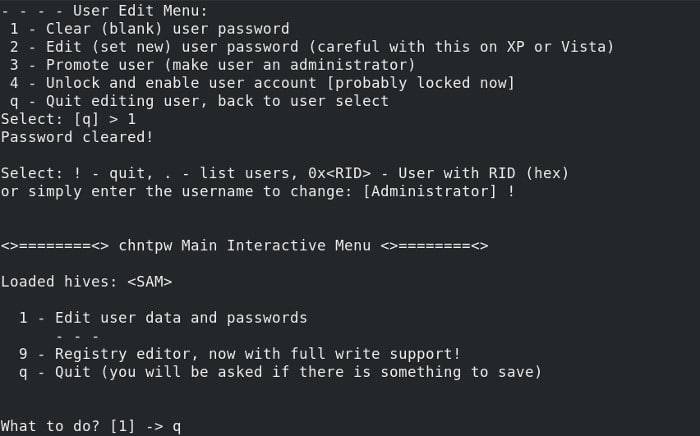
sudo chntpw SAM

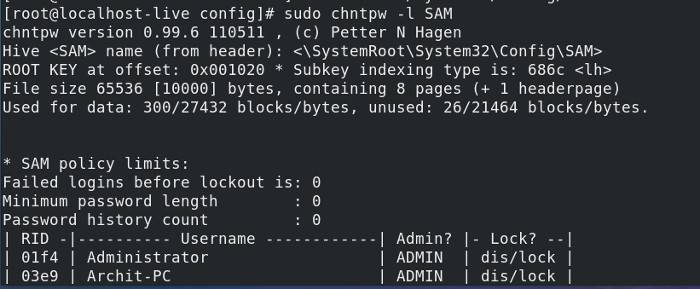
Now you will get a list of all users in this system. Type 1 to clear the user password.
Method 4: How to Reset Windows 7 Password with PCUnlocker Program?
If you are an amateur at using DOS or Linux commands, using PCUnlocker will be the best choice to reset your forgotten windows password. It is a bootable program. It helps to bypass or reset forgotten administrator passwords.
Step 1: The package of PCUnlocker self-extracting Zip needs to be downloaded in this step.
Step 2: Burn it into a USB drive using ISO2Disc.
Step 3: Boot your locked computer with this bootable USB drive.
Step 4: PCUnlocker program will open now. Select the desired user account from the list. Click Reset Password.
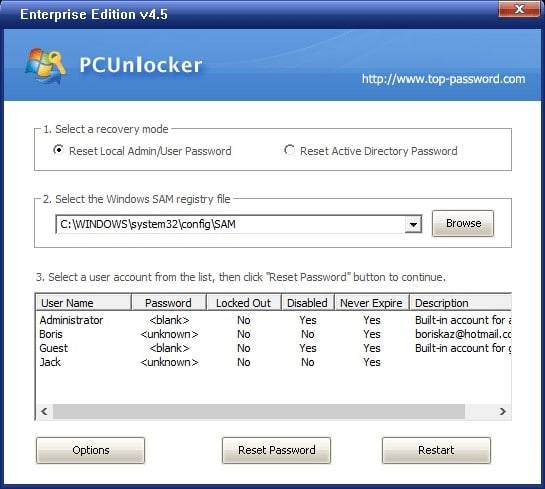
Step 5: Now selected account will get unlocked. Reboot the computer. Now you can log in without using any password.
Method 5: How To Reset Windows 7 Password Using A Backdoor Trick?
If your PC doesn’t have a CD drive or doesn’t support USB booting. In that case, there’s one last backdoor available to reset the forgotten password in windows 7.
Step 1: Turn on the computer. When it is turning on, hold the power button to force shut down your computer.
Step 2: Turn on the PC again. You will see the Windows error recovery page. Select Launch Startup repair.
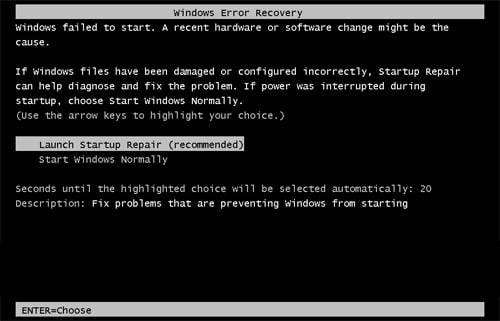
Step 3: Now, startup repair will boot up. Next, it will ask you to restore the PC. Press Cancel.
Step 4: After analyzing process is done, a dialogue box will appear. Click View Problem Details.

Step 5: Now, the detailed report will appear. Scroll down and select the last link.
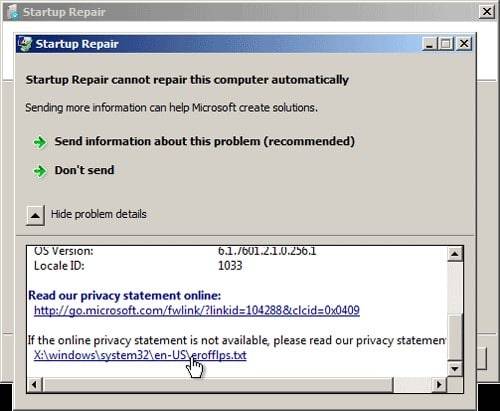
Step 6: Now, you will see the privacy statement on the notepad. Click File>Open.

Step 7: File open dialogue box will appear. Select Files of type to All Files. Browse to C:\windows\system32\sethc.exe. Rename Sethc to any name.

Step 8: Search the same folder for cmd.exe file. Next, rename it to sethc.exe.
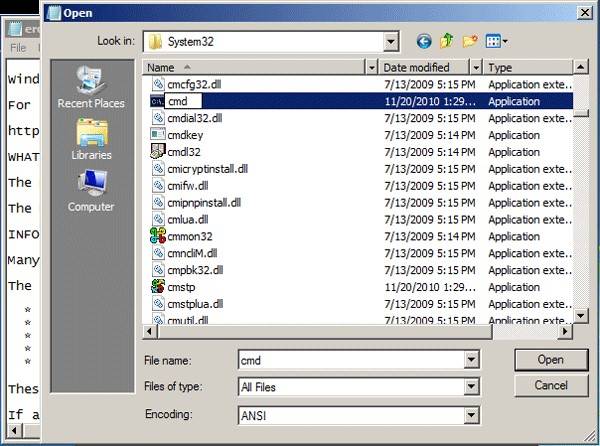
Step 9: Close all dialogue boxes. Restart Computer. Hit Shift five times. When the Windows login screen appears, a command prompt will open. Type the following command-
net user username password

Close command prompt. Then log in using the new password to log in.
Conclusion
It is frustrating when you forget the password of your computer. Most of the people will advise factory reset the computer. But this process also deletes all the data stored on the computer. As we have discussed how to reset Windows 7 password without logging in, you should try out some of these methods and find out which one works better. We hope it will help you and probably save your data and time as well.