

EnjoytechlifeEnjoytechlife
  • Home
  • AI
  • Apps
  • Excel
  • Gadget
  • Software
  • Space
  • Word
Facebook Twitter Instagram
  • Privacy Policy
  • Contact Us
  • Sitemap
Facebook Twitter Instagram
EnjoytechlifeEnjoytechlife
  • Home
  • AI

    Removing Life Events on Facebook: A Step-by-Step Guide

    May 4, 2024

    Winning Charms: Unlocking the Mystery of Online Gamers Lucky Rituals

    April 18, 2024

    ทำไมจึงควรเลือกทะเบียนรถจากเว็บออนไลน์ในยุคนี้

    April 9, 2024

    DUNIA303: Tempat Perlindungan Anda bagi Pecinta Slot Online

    March 20, 2024

    Is Each Spin On Megaways Game Unique?

    March 1, 2024
  • Apps

    Cash Advance Apps That Don’t Use Plaid: A Comprehensive Guide

    December 3, 2023

    How to Block Apps on iPhone: A Comprehensive Guide to App Restriction

    December 3, 2023

    Selling Feet Pics Apps: A Comprehensive Guide to Monetizing Your Foot Fetish

    December 3, 2023
  • Excel

    Create Excel Legend Order Not Changing Its Original Copy

    January 28, 2023

    Learn Why Your Microsoft Excel Not Sorting All Columns Duly

    January 3, 2023

    How To Center a Cell Horizontally in Excel

    November 14, 2022

    How To Assign A Value To A Variable In Excel

    November 13, 2022

    How To Shorten Excel Sheet

    November 12, 2022
  • Gadget

    Leasing a MacBook Pro 16″: A Comprehensive Guide

    August 27, 2024

    Exploring Different Safety Mat Types

    August 7, 2024

    Unraveling the Mystery of Dr. Claw in Inspector Gadget: A Comprehensive Exploration

    December 3, 2023
  • Software

    Streamline Your Workforce with the Best Shift Management Software

    April 21, 2025

    Engineering Software in Education: 9 Benefits for Students and Educators

    March 27, 2024

    How Can a CRM Add Value to Your Organization

    March 25, 2024

    Best Practices in AI Software Development: Your Guide to Success with a Custom Software Development Company

    March 15, 2024

    Is SAS Faster Than SSD?

    February 13, 2024
  • Space

    Unveiling the Enchantment: Explore the Wonders of the Museum of Dream Space

    December 3, 2023

    Plan 9 from Outer Space: Unraveling the Mystery of the Cult Classic

    December 3, 2023

    Trials in Tainted Space Wiki: Unraveling the Galactic Adventures

    December 3, 2023

    Power Rangers in Space: Exploring the Galactic Adventures of the Legendary Heroes

    December 3, 2023
  • Word

    How to Split Pages in Word into Separate Files

    June 20, 2023

    How do I Delete a page in Word that won’t Delete Mac

    May 28, 2023

    How To Get Rid Of Footer In Word

    April 23, 2023

    How to Merge Multiple Pages into One Page in Word? A Complete Guide

    January 2, 2023

    How To Print Gridlines in Word

    December 7, 2022
EnjoytechlifeEnjoytechlife
Home»Word»How To Make 3 Columns in Word
Word

How To Make 3 Columns in Word

By RodneySeptember 19, 2022Updated:September 19, 20225 Mins Read
Facebook Twitter LinkedIn Telegram Pinterest Tumblr Reddit Email
How To Make 3 Columns in Word
Share
Facebook Twitter LinkedIn Pinterest Email

Sometimes you require to split your text (or a section of it) into concurrent columns, and Word makes it a breeze. Whenever you divide the text into columns, you’ll see that it naturally continues in the column to the right. Any portion of your text may be extracted independently. This may help you organize your concepts and make your newsletter, research paper, or other writing projects more readable. Find out precisely, how to make 3 Columns in a Word document.

Table of Contents
[Open][Close]
  • Process of Making 3 Columns in Word
  • Process of Making 2 Columns in Word
  • Process of Making 4 or More Columns in Word
  • Process of Adding Column Breaks
  • Conclusion

Process of Making 3 Columns in Word

It may be necessary to utilize more than two columns to properly organize your material. One of Word’s most impressive features is the ability to divide the document into three or more columns. The steps you should undertake to do this are detailed beneath.

Get the file you wish to change open. Simply choose the text you wish to divide up and click the “Columns” option.

Columns

When you have finished selecting the text that you intend to break into columns in Microsoft Word, hit or press the Layout button that is located on the ribbon interface.

After that, go to the Columns option located in the Page Setup area of the Layout tab by clicking or tapping on it. This will provide a choice of alternatives for you to pick from, from which you will be able to choose the number of columns into which you would want to break your text. Initiate action by selecting 3.

Column option

The text that you have picked will automatically be divided into three columns as soon as you choose option Three.

Process of Making 2 Columns in Word

Before you can begin to divide the content of your text into two columns, you will need to either open an existing file in Word or build a new one & include some text in it. When you have finished selecting the content that you wish to separate into columns in Word, hit or press the Layout tab that is located on the bar menu.

After that, go to the Columns icon located in the Page Setup area of the Layout tab by clicking or pressing on it. Clicking this will bring up a menu out of which you can select the number of columns into which you’d prefer to divide your content. Make your selection by pressing or clicking on 2.
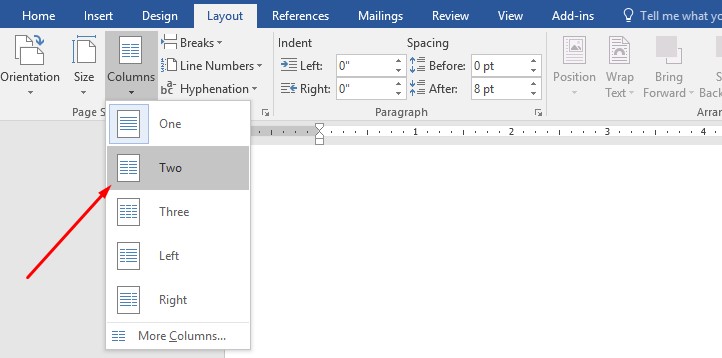
Making 2 Columns in Word

Below is a screenshot showing how Word automatically produces two columns and enables your content to flow between them.

produces two columns

You may then start composing new content anyplace in the document’s columns, and it will automatically fill up the empty spaces between them. This rhythm, though, may not be to your taste. See the next section if you need to pinpoint the precise position at which a column splits off.

Process of Making 4 or More Columns in Word

There is a possibility that your writing might need greater than two or three columns. It is fairly simple to put into action; all that is required is the addition of two or three columns.

Firstly, your document has to be opened, and then you need to pick the text that will be used for the columns. After that, proceed to the Layout tab, and then look for the Columns option. If you require more than three columns and you decide to click or touch the More Columns button, then Word will create a new window for you that is labeled Columns and it will provide extra options. Find the setting there that’s named “Number of columns,” and change it. After entering the desired number of columns, you should hit the OK box.

Making 4 Columns

Word instantly divides the text you have chosen into the number of columns that you have set. For instance, the result that we received when we decided to divide the content into four columns is as follows:

four columns

Process of Adding Column Breaks

You have the ability to regulate precisely where one column starts and another one finishes if that is something you wish to do. Column breaks, an in-built feature of Microsoft Word, accomplish precisely this goal. To insert a column break, you must first select or press at the commencement of the content where you want the new column to appear.

new column to appear

Following that, launch Microsoft Word and navigate to the top menu. Once there, select the Layout option by pressing on it.
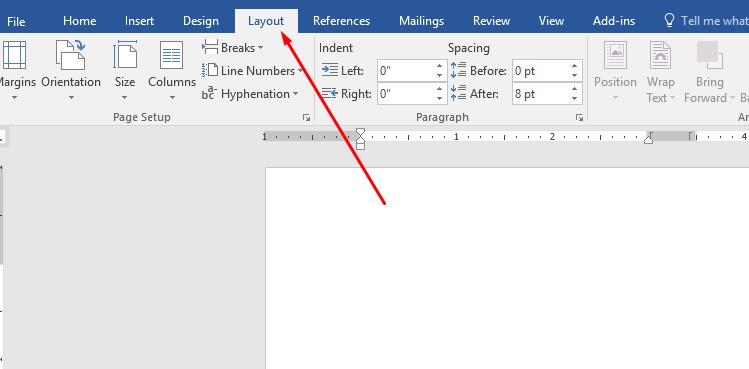
Layout option

Hit or press on the Breaks option that is located in the Page Setup area of the Layout tab. This function displays a list of possible layouts for the Page Breaks & Section Breaks that you have chosen. To use it, hit or press the Column button.
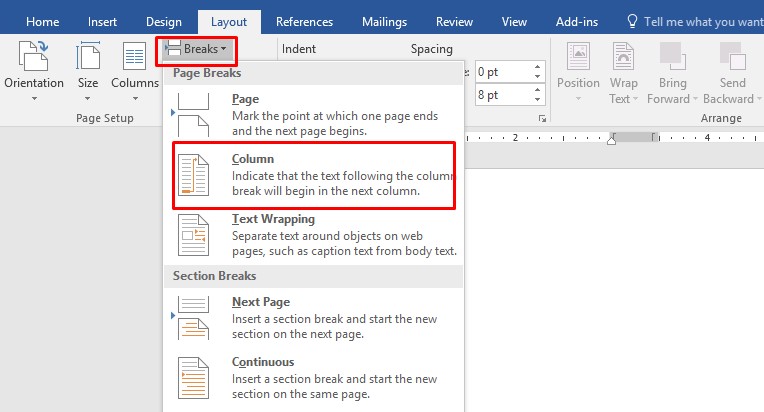
Page Breaks

After you have completed the steps outlined above, as you will observe in the demonstration, Word automatically places the beginning of the subsequent column at the location you specified.
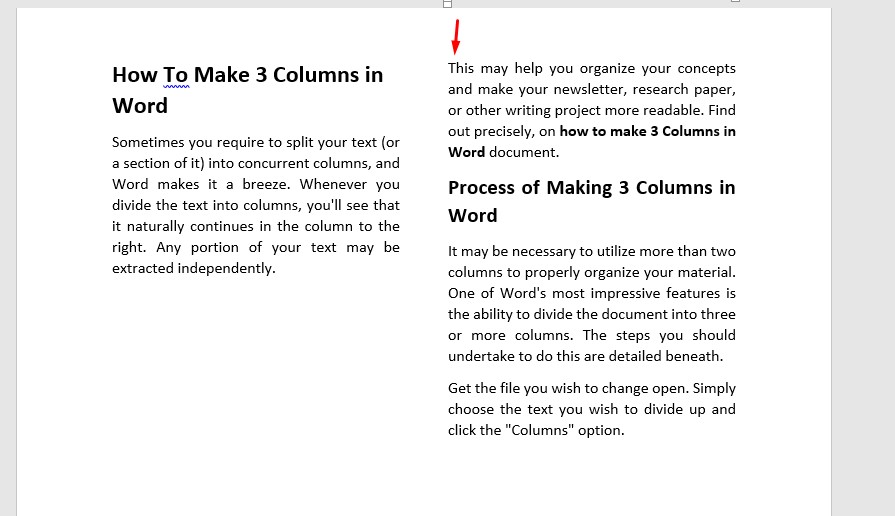
Page Breaks

Conclusion

Whether you are composing a research paper, an essay for the newspaper, or something else, dividing the material that you are writing into many columns will give it an attractive appearance. This article on how to make 3 columns in Word will assist you in doing that as well as other tasks, such as determining the location of column breaks.

Share. Facebook Twitter Pinterest LinkedIn Tumblr Email
Previous ArticleDS4 Windows PS5 Controller
Next Article Discord Account Disabled Appeal
Rodney

Hi, I'm Rodney—tech enthusiast, gadget lover and the voice behind EnjoyTechLife.com. I break down complex tech into simple, actionable tips so you can get the most out of your digital life. Let's explore the future, one post at a time.

Related Posts

How to Split Pages in Word into Separate Files

June 20, 2023

How do I Delete a page in Word that won’t Delete Mac

May 28, 2023

How To Get Rid Of Footer In Word

April 23, 2023

How to Merge Multiple Pages into One Page in Word? A Complete Guide

January 2, 2023

How To Print Gridlines in Word

December 7, 2022

Blue Paragraph Symbol in Word – How to Eliminate

December 5, 2022
Popular Now

Smart Tools for Smart Makers: How Tech Is Changing DIY and Home Innovation

February 10, 2026

How Smart Software Is Changing the Way We Design and Upgrade Homes

February 10, 2026

What Today’s Farmers Need to Know About Connected Agriculture

January 28, 2026

How Best Money Gaming Site Manage Real Time Interaction

January 1, 2026

The Rise of Interactive Digital Experiences in the Modern Online World

December 27, 2025
About Us

Enjoytechlife is a technology blog. I am passionate with technology for this reason start this blog to share my view and knowledge with people who are interested in tech. Enjoytechlife!

For Any Inquiries

Contact : [email protected]

Top Picks
Tech

Smart Tools for Smart Makers: How Tech Is Changing DIY and Home Innovation

By RodneyFebruary 10, 2026
Follow Us
  • Facebook
  • Twitter
  • Pinterest
  • Instagram
  • YouTube
  • LinkedIn
Facebook Twitter Instagram Pinterest
  • Privacy Policy
  • Contact Us
  • Sitemap
Enjoytechlife.com © 2026 All Right Reserved

Type above and press Enter to search. Press Esc to cancel.