

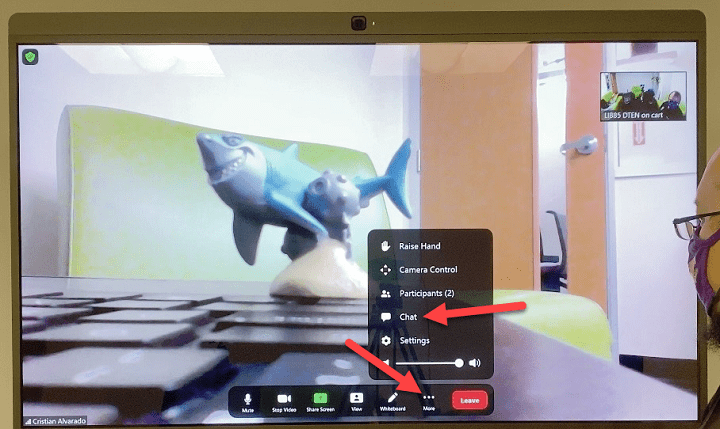
Zoom, the popular video conferencing platform, has become an essential tool for remote work, virtual meetings, online classes, and social gatherings. One crucial aspect of a successful Zoom meeting is managing audio levels effectively to ensure clear communication and a smooth user experience. In this comprehensive guide, we’ll explore everything you need to know about Zoom volume control, including adjusting audio settings, troubleshooting common issues, and maximizing audio quality for your Zoom meetings.
Understanding the Importance of Zoom Volume Control

Before we delve into the specifics of Zoom volume control, let’s first understand why it’s important:
Clear Communication
Effective volume control in Zoom ensures that participants can hear each other clearly during meetings, presentations, or discussions. Adjusting audio levels prevents distortion, echoes, or muffled sounds, enabling smooth communication and fostering engagement among participants.
Accessibility
Zoom volume control plays a crucial role in making meetings accessible to participants with hearing impairments or audio sensitivities. By offering customizable audio settings, Zoom accommodates diverse user needs and ensures inclusive participation in virtual meetings and events.
Professionalism
Properly managed audio levels in Zoom contribute to a professional and polished meeting experience. Consistent volume levels, clear audio quality, and minimal background noise enhance the overall impression of professionalism and credibility for both hosts and participants.
Methods for Adjusting Zoom Volume Control
Now, let’s explore the methods and techniques for adjusting Zoom volume control:
Audio Settings in Zoom Client
The Zoom desktop client offers a range of audio settings that allow you to adjust volume levels and microphone settings. Here’s how to access and adjust audio settings in the Zoom client:
- Open the Zoom desktop client on your computer.
- Click on the “Settings” gear icon in the top right corner of the window.
- In the Settings menu, navigate to the “Audio” tab on the left sidebar.
- Use the volume slider under the “Speaker” section to adjust the output volume for your speakers or headphones.
- Use the volume slider under the “Microphone” section to adjust the input volume for your microphone.
- You can also test your audio settings using the “Test Speaker” and “Test Mic” buttons to ensure optimal audio quality.
In-Meeting Controls
During a Zoom meeting, participants can adjust their volume settings using in-meeting controls. Here’s how to do it:
- Join a Zoom meeting using the desktop client or web browser.
- Once in the meeting, locate the audio controls at the bottom left corner of the meeting window.
- Click on the up or down arrow next to the volume icon to adjust the overall volume level for the meeting.
- You can also click on the “^” arrow next to the microphone icon to access additional audio settings, such as speaker and microphone selection.
Best Practices for Zoom Volume Control

To ensure optimal audio quality and a seamless meeting experience, consider the following best practices for Zoom volume control:
Test Audio Before Meetings
Before joining a Zoom meeting, test your audio settings to ensure everything is working correctly. Use the Zoom test meeting feature or conduct a test call with a colleague to check volume levels, microphone clarity, and audio quality.
Use Headphones or External Speakers
When participating in Zoom meetings, use headphones or external speakers to improve audio quality and reduce the risk of feedback or echo. Headphones help isolate your audio from background noise and provide a clearer listening experience for both you and other participants.
Minimize Background Noise
To maintain clear audio quality in Zoom meetings, minimize background noise by choosing a quiet environment and muting your microphone when not speaking. Avoid multitasking or typing loudly during meetings to prevent distractions and ensure that participants can hear each other clearly.
Troubleshooting Zoom Volume Control Issues
If you encounter issues with Zoom volume control, such as low audio levels, distorted sound, or microphone feedback, try the following troubleshooting steps:
Check Device Settings
Ensure that your device’s volume settings are properly configured and that the volume is not muted or set too low. Adjust the volume settings on your computer, speakers, or headphones as needed to increase the volume output.
Update Zoom Client
Make sure you’re using the latest version of the Zoom desktop client, as updates may include bug fixes or improvements related to audio settings and volume control. Check for updates in the Zoom client settings or download the latest version from the Zoom website.
Restart Audio Devices
If you’re experiencing audio issues in Zoom, try restarting your audio devices, such as speakers, headphones, or microphone. Disconnect and reconnect your audio devices, or restart your computer to refresh audio settings and resolve any temporary glitches or conflicts.
Related Post:
- How to Make VR Lenses without Lens?
- VR Games for Android Without Controller – 5 Fun-To-Try
- Windows 10 delete files and folder confirmation – Step by Step Process
Mastering Zoom volume control is essential for ensuring clear communication, accessibility, and professionalism in virtual meetings and events. By understanding the importance of volume control, adjusting audio settings effectively, following best practices, and troubleshooting common issues, you can optimize audio quality and enhance the overall Zoom meeting experience for yourself and others.
So, take the time to explore Zoom volume control settings, adjust audio levels to your preference, and create a seamless meeting environment that fosters engagement, collaboration, and effective communication. With proper volume control in Zoom, you can elevate the quality of your virtual interactions and make every meeting a success.
Now, go forth and master Zoom volume control, and may your virtual meetings be filled with crystal-clear audio and productive conversations. Happy Zooming!