

The advantages of solid-state drives (SSD) over conventional magnetic hard disks are several, which is why many individuals are switching to the better storage option. The Windows OS has a typical problem of not identifying SSDs. Due of this, your SSD may not show up in This PC, File Explorer, or Disk Management, even if it is connected to the system.
This problem might be extremely aggravating when attempting to install the SSD. To assist you in resolving the issue, this article provides a solution to the SSD showing up in BIOS but not Windows.
Fixes for Windows Not Recognizing SSD
To begin, make certain that your BIOS recognizes the SSD and starts it up. Ensure that the SSD is mentioned in the Boot menu after entering the BIOS. In this case, if the SSD is identified, you may go to the next step and try the options below. If the BIOS doesn’t recognize your SSD, it’s possible that your hardware is malfunctioning or that the SATA driver parameters in the BIOS need to be adjusted.
SSD Failed to Initialize
To utilize a fresh SSD in Windows 10, you must first initialize it. The File Explorer and the Disk Management software do not recognize an uninitialized SSD.
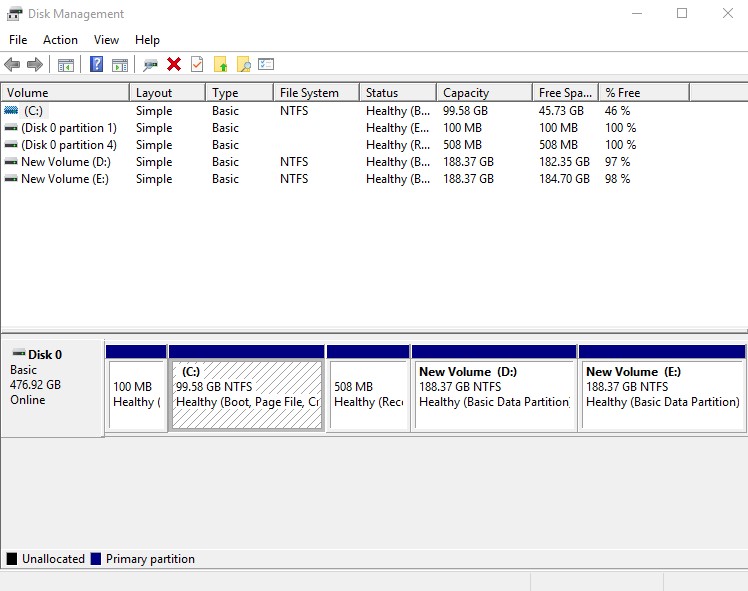
If you haven’t done so before, these are the steps to do so:
- Utilize the Start menu search feature to look for Disk Management, then right-click the first result and choose Run as administrator.
- Right-click the SSD and pick Initialize Disk from the list of options.
- Make certain to pick the SSD drive inside the Initialize Disk text field and select the partition layout you desire.
- You may start the disk initialization procedure by clicking Ok.
- After finishing Step 4, proceed to Disk Management and pick New Simple Volume from the right-click menu of your SSD Volume.
- Just follow the on-screen directions when you’re ready to allocate the SSD volume and alphabet.
We suggest rebooting your PC after initializing the SSD so that the adjustments can take effect. Using File Explorer to access the SSD after Windows 10 has rebooted should be possible.
Storage Controller Drivers Should Be Upgraded
The storage controller drivers need to be updated first before we can make any significant alterations. If your SSD is not being detected by Windows, it’s possible that you have an out-of-date driver.

In order to upgrade the storage controller drivers:
- Device Manager may be accessed by selecting it within the Start screen.
- Locate and extend the Storage controllers group.
- The storage controller may be updated by right-clicking and selecting Update driver.
- When searching for the latest driver software, choose “Search automatically.”
You may then reboot your computer and launch File Explorer or Disk Management to verify whether Windows 10 now recognizes the SSD after installing any new updates.
Resolve Memory Problems to Identify SSD
Sometimes, Windows memory limitations restrict the SSD from being identified. If your RAM or hard drive is malfunctioning, the Windows Memory Diagnostic program may help you repair it. The Windows Memory Diagnostic tool may be accessed by following these instructions:
When you enter Windows Memory Diagnostic from the Start screen, right-click the Perfect Match and select Run as administrator. Before you resume, create a copy of your activity and inspect it for errors.

The diagnostic test is currently running on your computer, and it will reboot automatically. An automated reboot will occur when the test is finished, and the findings will be shown on your PC screen.
After that, you can examine whether Windows 10 has identified the SSD in Disk Management or File Explorer. After that, you may use Disk Management to initialize the SSD, as stated before.
Modify or Allocate a Drive Letter
In many cases, a clashing or nonexistent drive letter is at blame when Windows 10 struggles to identify an SSD. Modifying or issuing a different drive letter to the SSD in the Disk Management tool can rapidly fix this problem for you.
- In order to assign an SSD a new drive letter:
- Utilize the Start menu search feature to look for Disk Management, then right-click the first result and choose Run as administrator.
- Switch your SSD’s letter and directory by right-clicking it. You may either add a new drive letter or alter an existing one by clicking the appropriate button.
- In order for the new drive symbol to take effect, choose it from the drop-down option and then press Ok.
Once you’ve completed the preceding procedures, restarting your computer and selecting the SSD will be possible. Afterward, you may access the SSD using File Explorer.
No Boot from SSD in BIOS
Many customers have complained that the BIOS detects the SSD; however, the PC won’t launch. Here are a few easy tweaks to get your BIOS to boot from an SSD.
Reset Your Computer’s BIOS Settings
Assure that your SSD is the sole storage device linked to your motherboard. In addition, attach the SSD to the motherboard’s SATA 0 input. Verify if it succeeds. If the problem persists, access BIOS and reset everything.
Upgrade BIOS
Get the newest BIOS for your system. Flash your BIOS using the provided file. Remember that updating the BIOS is a complicated technique that might harm your motherboard, so read the manuals carefully.
Perform A Clean Windows 10 Setup
Resetting Windows 10 may be your only option if your SSD is detected, but it still won’t start. You may also attempt a fresh installation of Windows 10 on an SSD to see if that helps.
How to Activate New Hard Drives and SSD’s Not Showing Up
Conclusion
Despite their increasing adoption, solid-state drives (SSDs) are not without problems. The Disk Management tool may often be used to fix an issue with a fresh SSD although Windows 10 doesn’t recognize it. With any luck, these workarounds will help you with SSD showing up in BIOS but not Windows.