


Discord is an extensively used social media platform worldwide for communication purposes. It’s a voice-over-internet protocol and instant messaging-based social platform used mainly by the gaming community. The user can communicate through text messages, voice calls, and video calls and share various types of files privately as a part of communities known as servers.
The server owners can easily organize their server and grant proper permissions to the moderators by adding color roles in discord with the carl bot. To make it happen, you must know how to add color roles in discord with carl bot.
What are Carl Bot and The Reasons Why You Should Use it to Add Color Roles in Discord
Carl bot is simply a fully customizable bot in discord that offers color roles, reaction roles, auto roles, moderation tools, and more. It’s like a helping hand of the server owner with a huge number of features like
- Color roles
- Suggestions
- Auto responses
- Welcome messages
- Starboard
- Auto mod
- Powerful moderation
- Powerful custom commands
- User Engagement
If you have a discord server, you can add the carl bot for using fully automated user-friendly features. By adding color roles in the discord server, you can easily assign someone’s specific roles, and with a single handle, you can mention all members of a role at a time.
Carl bot is the easiest and most secure way to add color roles in discord. Different types of bots are available through the internet to add color roles in discord. But among those, the carl bot is more suitable and easier to use in this case. It’s a fully automated and customizable bot provided by discord.
Adding color roles with the carl bot is the safest option to take full control of your server and make it user-friendly and safe.
How to Add Color Roles in Discord with Carl Bot – The Steps to Fulfil the Task
The server owner can easily control and organize it by adding color roles with the carl bot. People need clarification on color roles and reaction roles. Sometimes people ask how to make color roles with carl bot, andthey also ask how to make reaction roles with carl bot, and they are both the same.
The answer is reaction roles and color roles correspond to each other. To complete this task, we must perform some steps one by one. But the main purpose is to specify the carl bot reaction roles color. Now, here are the steps given below to perform the task:
Step-1: Visit Carl’s Website to Add It to Your Server
To complete the task with the carl bot, first, you must add it to your server. Therefore, search carl bot with any of your browsers, and from the displayed results, enter the first link. This will take you to the official curl bot website, form where you can add it to your server to perform your task.
For this, you need to invite carl bot to your server by clicking a button named “invite.” It will synchronize with your discord server automatically. After clicking, it will take you to another page form where you can select a bot for your different server.

After selecting your desired server, you will get a continue button, and you just have to click on it. Then some permission will be required to perform this step. You must accept it by clicking on the “Authorize” option at the bottom corner. Through this, carl bot will be added to your server.
Step-2: Create the Desired Role
In this step, you have to create a different role for users to use and get a role. In this step, you have to go to the server setting, and you will find the “roles” option. After clicking on the “roles” option, a new page will arrive, in which by clicking on “+” icon, you can assign a new role.

Now you can give a different name for a different role. Create a role as much as you need with different colors, and the last click on the “save changes” button from the bottom right corner. Make sure to keep the color role above the other’s role; otherwise, the color won’t apply to the given role.
Step-3: Add Emoji for Color Role
At this point, you need to create emojis and synchronize them with color. Now go to carl bot’s homepage, and here you will find “reaction roles” in the utility section. By clicking on “reaction roles,” there will appear a new page to ‘create reaction role’ just click on it, and the new desired page will arrive.
Then you must select “user-id” from the first row then provide the server id in which you want to add color roles. If you can’t find the user id, then just turn on the developer mode, and you will get it from your profile. Then select the channel you want to add the color role.
Then by clicking on the “Add Emoji” button, there will be an option to search for emojis, then search for the name of the color roles you created before. For example, this can be red, blue, green, etc. Then this selective color emoji will appear in front of you and select the emoji you want.
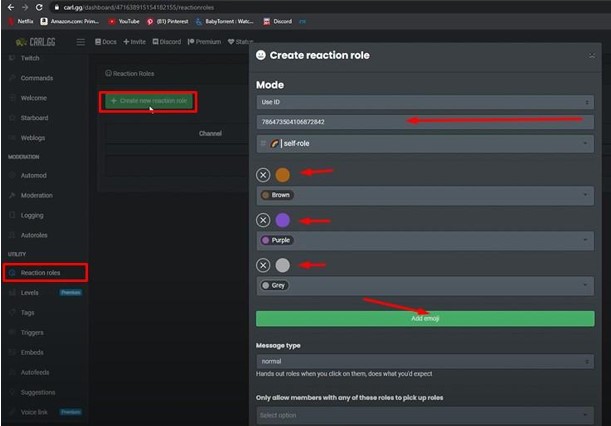
Next, select a role from the bottom of the selected emoji and keep your role similar to your emoji color. Then complete adding emojis for your desired color roles by clicking add emoji and add role option. Make sure that you select “unique” on the massage type option.
After completing every color role emoji, click on the “create” option from the bottom corner to complete this step. Then you will see that the color role with the selected emoji will appear on your desired channel.
Step-4: Grant Permission
By completing the above 3 steps, the color roles are already created. But to use it in practical life, you have to permit it. For this, go to server setting first, then click on “roles,” and you will gate a full list of your role for this server.
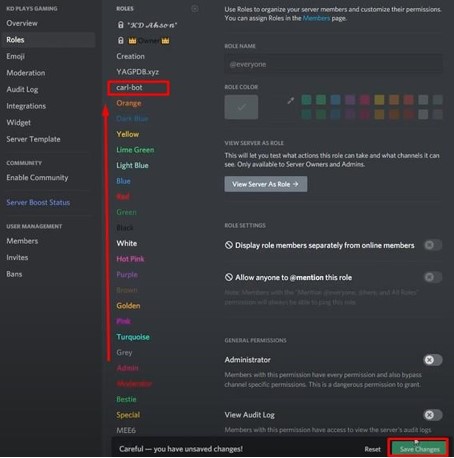
Then click and drag the “carl bot” to the top of the color roles and complete the step by clicking on “save changes.” Now you will find all the color roles are functional, and by clicking on any emoji, you can assign a different color role for yourself.
The addition of color roles is complete, and the server owner can use it to organize the members and give proper permission to moderators.
How to Make Reaction Roles on Discord
FAQs
Why is the carl bot color role not working in my discord server?
The basic problem of the color role will be solved by performing the following steps above.
Can I change the color of my role in the discord server?
Final Thoughts
Color roles normally make the server more organized, systematic, and user-friendly. It also gives proper permissions to the server moderators. That makes the server more stable and user-friendly. You can mention all the members of a role at a time with a single handle.
But it will require you to have a complete grip on how to add color roles in discord with carl bot. It makes the server cleaner, stable and hassle-free. This is kind of a boon for server owners and members; that’s why it’s one of the most used roles in the discord server.