

EnjoytechlifeEnjoytechlife
  • Home
  • AI
  • Apps
  • Excel
  • Gadget
  • Software
  • Space
  • Word
Facebook Twitter Instagram
  • Privacy Policy
  • Contact Us
  • Sitemap
Facebook Twitter Instagram
EnjoytechlifeEnjoytechlife
  • Home
  • AI

    Removing Life Events on Facebook: A Step-by-Step Guide

    May 4, 2024

    Winning Charms: Unlocking the Mystery of Online Gamers Lucky Rituals

    April 18, 2024

    ทำไมจึงควรเลือกทะเบียนรถจากเว็บออนไลน์ในยุคนี้

    April 9, 2024

    DUNIA303: Tempat Perlindungan Anda bagi Pecinta Slot Online

    March 20, 2024

    Is Each Spin On Megaways Game Unique?

    March 1, 2024
  • Apps

    Cash Advance Apps That Don’t Use Plaid: A Comprehensive Guide

    December 3, 2023

    How to Block Apps on iPhone: A Comprehensive Guide to App Restriction

    December 3, 2023

    Selling Feet Pics Apps: A Comprehensive Guide to Monetizing Your Foot Fetish

    December 3, 2023
  • Excel

    Create Excel Legend Order Not Changing Its Original Copy

    January 28, 2023

    Learn Why Your Microsoft Excel Not Sorting All Columns Duly

    January 3, 2023

    How To Center a Cell Horizontally in Excel

    November 14, 2022

    How To Assign A Value To A Variable In Excel

    November 13, 2022

    How To Shorten Excel Sheet

    November 12, 2022
  • Gadget

    Leasing a MacBook Pro 16″: A Comprehensive Guide

    August 27, 2024

    Exploring Different Safety Mat Types

    August 7, 2024

    Unraveling the Mystery of Dr. Claw in Inspector Gadget: A Comprehensive Exploration

    December 3, 2023
  • Software

    Streamline Your Workforce with the Best Shift Management Software

    April 21, 2025

    Engineering Software in Education: 9 Benefits for Students and Educators

    March 27, 2024

    How Can a CRM Add Value to Your Organization

    March 25, 2024

    Best Practices in AI Software Development: Your Guide to Success with a Custom Software Development Company

    March 15, 2024

    Is SAS Faster Than SSD?

    February 13, 2024
  • Space

    Unveiling the Enchantment: Explore the Wonders of the Museum of Dream Space

    December 3, 2023

    Plan 9 from Outer Space: Unraveling the Mystery of the Cult Classic

    December 3, 2023

    Trials in Tainted Space Wiki: Unraveling the Galactic Adventures

    December 3, 2023

    Power Rangers in Space: Exploring the Galactic Adventures of the Legendary Heroes

    December 3, 2023
  • Word

    How to Split Pages in Word into Separate Files

    June 20, 2023

    How do I Delete a page in Word that won’t Delete Mac

    May 28, 2023

    How To Get Rid Of Footer In Word

    April 23, 2023

    How to Merge Multiple Pages into One Page in Word? A Complete Guide

    January 2, 2023

    How To Print Gridlines in Word

    December 7, 2022
EnjoytechlifeEnjoytechlife
Home»Windows 10»Unmute Microphone Windows 10
Windows 10

Unmute Microphone Windows 10

By RodneyFebruary 6, 2022Updated:September 3, 20226 Mins Read
Facebook Twitter LinkedIn Telegram Pinterest Tumblr Reddit Email
Unmute Microphone Windows 10
Share
Facebook Twitter LinkedIn Pinterest Email

Windows 10 keeps the mic and speakers on by standard. As a result of this article, you will be able to silence your microphone while keeping your speaker active. Only the speaker can be muted directly by clicking the Volume indicator in the system tray, but the microphone can’t be muted in the same manner that the speaker can. To know how to unmute microphone Windows 10, read this post.

Mute Mic Using System Tray

To switch off or silence the Mic from the System Tray, implement the procedures described: –
Mute Mic Using System Tray

Step-1: Choose “Open Sound Settings” from the taskbar notifications region by right-clicking on the volume symbol.

Open Sound Settings

Step-2: The step described above will launch the Settings application, where you will find yourself on the Sound tab. Navigate down to the Input part on the right-hand side panel of the Sound and tap on the “Manage sound devices” option from the Input area.

Manage sound devices

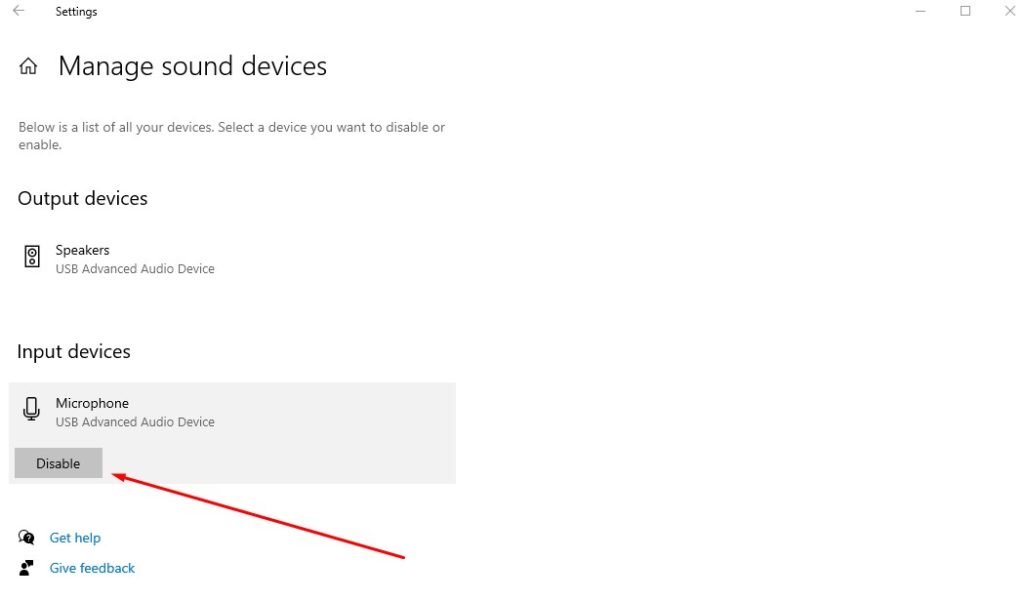
Step-3: The window “Manage sound devices” appears. Select “Internal Microphone” from the list of input devices underneath the “Input devices” segment.

Internal Microphone

Step-4: When you tap on the Disable option, the chosen Microphone will be muted or switched off.
Microphone

After you have completed the procedures outlined above, the chosen mic in Windows 10 will be silenced or switched off by default.

Repetition of steps 1-3 will allow you to unmute the mic, after which you will tap on the Enable option to unmute or switch on the chosen mic.

Mute Mic Through Settings

Utilizing the Windows 10 Settings application, perform these instructions to silence or disable the mic.

Step-1: To access the Settings application, hit the Windows logo + I key combination, or access it using any other convenient way.

Settings application

Step-2: Tap on the Privacy option in the left-hand navigation pane of the Settings panel that appears.

Step-3: Inside the left panel, choose the Mic option to proceed. On the right column of the Mic window, choose the Change option next to “Allow access to the microphone on this device.”

Allow access to the microphone on this device.

Step-4: There will be a popup window. Select Off in the popup box to turn off mic access in Windows 10.

mic access in Windows 10

You will be able to silence or turn off your Windows 10 mic after you have completed the procedures listed above within the Settings application.

If you need to switch on the microphone again, just repeat the procedure from steps 1-3, and a popup window will open. To allow mic accessibility in Windows 10, choose the On button in the popup box that emerges.

Mute Mic Through Other Software

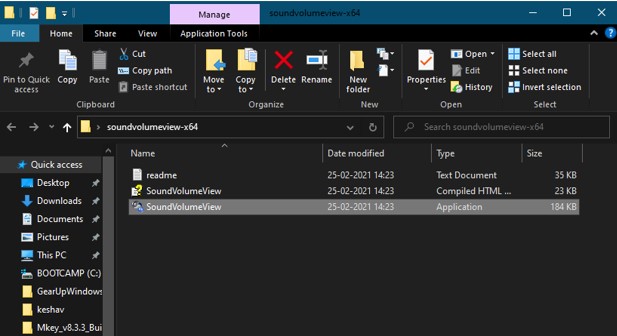
You may use the Command Prompt and the GUI to silence or un-mute any audio source with the SoundVolumeView program. You may use WinRAR or another application to extract the file once you’ve downloaded it from the online webpage.
Mute Mic Through Other Software

Launch SoundVolumeView by double-clicking on the executable program. It will provide a comprehensive listing of all of your computer’s audio peripherals.

SoundVolumeView

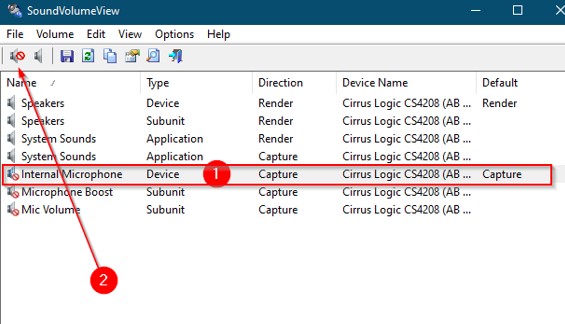
It’s easy to silence your mic by clicking on the Mute button from within the toolbar.
Mute button

The mic on your Windows 10 System will be silenced after you’ve completed the preceding instructions.

Keyboard Shortcut to Silence Windows 10 Mic

Speakers may be muted using a special key on keyboards. A function (fn) row of keystrokes may be used to control media even if it doesn’t come with any specific keys.  The speakers may be muted with the use of one of such buttons.

No such key exists for muting the microphone. In most instances, this is due to the fact that the microphone isn’t always turned on. Whenever an application uses it, it activates. Because of this, the application’s mute option is intended to be used by clients. That’s undoubtedly effective, but it takes a long time.

You’ll probably have to utilize the mouse to hit the button, which is slower than using a keyboard shortcut. If you want to silence or reactivate the microphone on Windows 10, you may use a keyboard shortcut.

We’ll use a free tool called MicMute to silence and unmute the microphone with a keystroke. It is free to obtain and install.

The mic symbol is added to the system tray while the software is running in the background. From this symbol, you may access the application’s parameters, change the keyboard shortcut, and check the microphone’s status. Black indicates that the microphone is turned off, while red indicates that it is turned on.

When the program opens, it may mute the microphone instantly, it can display all of the audio input peripherals it has identified, and it includes a “Push to talk” option in which the microphone only functions if a key is held in place.

microphone

Setup shortcut is accessed by right-clicking the program from the system tray and selecting ‘Set shortcut’ from the menu bar. Open the tiny window that appears. You can mute or unmute the microphone by clicking within the box and pressing the button or buttons you wish to utilize. The program can function with both typical keyboard keys and special keyboard keys.

Whenever you press the loudspeaker mute/unmute key on the keyboard, both the speakers and the microphone will be muted and unmuted simultaneously. A desktop notification appears each time the microphone is silenced or unmuted. You may turn off the notifications in the application’s settings if you don’t intend to receive them.

application's settings

FAQ

Why won’t my microphone work? 

Answer- A defective microphone might be at blame if your device’s loudness has been reduced to near nothing. Examine your device’s audio parameters to see whether your conversation or media volumes are muted or very minimal. Make sure that your phone’s call and media volume are turned up if this is the case.

Conclusion

When an app requests access to the microphone, Windows 10 displays a mic icon in the system tray. This symbol may have had a more practical purpose. The microphone is not muted when you press it. This article explains how to unmute microphone Windows 10 to assist users.

Meta Description

Knowing how to unmute microphone Windows 10 will help you stop the mic from being unnecessarily activated.

Share. Facebook Twitter Pinterest LinkedIn Tumblr Email
Previous ArticleHow to Change your Discord Password Without Knowing It
Next Article Loudness Equalization Windows 11- Ultimate Guide
Rodney

Hi, I'm Rodney—tech enthusiast, gadget lover and the voice behind EnjoyTechLife.com. I break down complex tech into simple, actionable tips so you can get the most out of your digital life. Let's explore the future, one post at a time.

Related Posts

Critical Process Died Windows 10 Cannot Boot [Solve With 9 Ways]

January 18, 2023

7 Solutions to Fix Windows 10 Black Screen for 5 Minutes After Login

December 28, 2022

What Happens If There Is No Antivirus In Windows 10? – Safety For Windows

December 15, 2022

Dell Replace Hard Drive Reinstall Windows 10/11 – The Windows Installation

December 14, 2022

How To Install Windows After Replacing Hard Drive – Best And Easy Way

December 13, 2022

Windows Security Button Dell Laptop

December 6, 2022
Popular Now

How Best Money Gaming Site Manage Real Time Interaction

January 1, 2026

Exploring the Exciting World of Game and Gacor Thailand

December 11, 2025

Simple Tips for Managing Mobile Games Efficiently

November 19, 2025

The Allure of Mahjong Money Games in Modern Online Gaming

November 9, 2025

How Texas Soil Impacts Home Foundations

October 24, 2025
About Us

Enjoytechlife is a technology blog. I am passionate with technology for this reason start this blog to share my view and knowledge with people who are interested in tech. Enjoytechlife!

For Any Inquiries

Contact : [email protected]

Top Picks
All

How Best Money Gaming Site Manage Real Time Interaction

By RodneyJanuary 1, 2026
Follow Us
  • Facebook
  • Twitter
  • Pinterest
  • Instagram
  • YouTube
  • LinkedIn
Facebook Twitter Instagram Pinterest
  • Privacy Policy
  • Contact Us
  • Sitemap
Enjoytechlife.com © 2026 All Right Reserved

Type above and press Enter to search. Press Esc to cancel.