

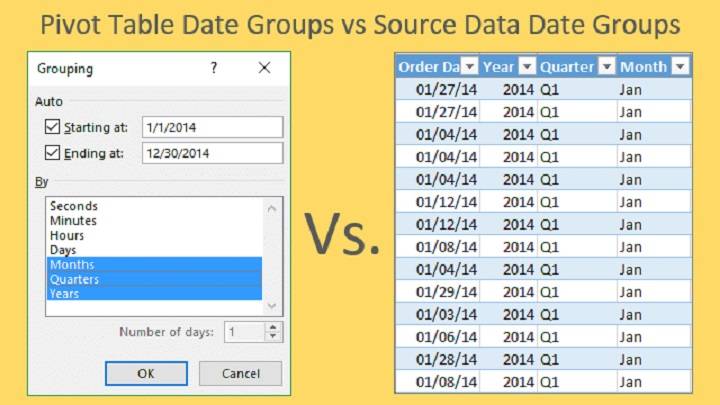
Pivot tables are a powerful feature in Excel that allow you to summarize and analyze data with ease. They can help you gain valuable insights from your data by providing a dynamic and interactive way to view information. One common task when working with pivot tables is using date filters to group and filter data by date. However, there are times when you may encounter issues with your pivot table date filter not grouping as expected. In this comprehensive guide, we will explore six common reasons why your pivot table date filter may not be grouping correctly and provide solutions to fix these issues.
Incorrect Date Format

One of the most common reasons why your pivot table date filter may not be grouping correctly is due to incorrect date formatting in your source data. Excel relies on consistent date formats to recognize and group dates correctly. Here’s how to fix it:
Check the Date Format: First, ensure that the date format in your source data is consistent. Dates should be in a recognizable format such as “mm/dd/yyyy” or “dd/mm/yyyy.” Inconsistent date formats can lead to errors and inaccuracies in your analysis.
Use the Text to Columns Tool: If your dates are stored as text or in an irregular format, you can use Excel’s Text to Columns tool to convert them to date format. Select the column with the date data, go to the “Data” tab, and choose “Text to Columns.” Follow the wizard to specify the date format. This tool is especially useful for cleaning up data imported from external sources or databases where date formats may vary.
Format the Pivot Table: After cleaning up your source data, refresh your pivot table to ensure that it reflects the changes. Right-click any cell within the pivot table and choose “Refresh.” Excel should now recognize and group the dates correctly in your pivot table date filter. This step is crucial for maintaining the accuracy and reliability of your analysis, as it ensures that your pivot table accurately reflects the updated date information from your source data. Additionally, you can further customize the appearance and layout of your pivot table to improve readability and analysis.
Blanks or Errors in Date Data
Blank cells or errors in your date data can also disrupt the grouping process in your pivot table date filter. To address this issue:
Validate Data Types: Additionally, verify that the data in the date column is consistently formatted as dates. This involves checking for any mixed data types within the column, such as text or numeric values, which may cause errors in date calculations or sorting.
Address Inconsistent Date Formats: Standardize the date formats across the dataset to ensure uniformity. Different date formats (e.g., DD/MM/YYYY, MM/DD/YYYY) can lead to misinterpretation or errors in analysis. Convert all dates to a single, consistent format to facilitate accurate data manipulation.
Handle Outliers or Anomalies: Identify and address any outliers or anomalies in the date data. These could include dates that fall outside the expected range, such as future dates that haven’t occurred yet or dates far in the past that may be erroneous. Review and correct such anomalies as needed to maintain data integrity.
Document Data Cleaning Steps: Document the steps taken to clean the date data for transparency and reproducibility. This documentation can include a record of the procedures followed, any transformations applied, and the rationale behind specific decisions made during the cleaning process. Keeping clear documentation helps ensure that others can understand and replicate the data cleaning steps if needed.
Validate Data Integrity: Finally, perform a comprehensive validation of the cleaned data to ensure its integrity and reliability for analysis. This may involve cross-referencing the cleaned date column with other relevant data sources or conducting sanity checks to verify the accuracy of the dates in context. By validating the data integrity, you can have confidence in the quality of the dataset for further analysis or reporting purposes.
Grouping Settings

Sometimes, the issue with your pivot table date filter not grouping correctly may be related to the grouping settings applied to the date field. Here’s how to adjust the grouping settings:
- Select the Date Field: Click on the date field in your pivot table that you want to group.
- Go to the Analyze (or Options) Tab: Depending on your Excel version, you’ll find the “Analyze” or “Options” tab under “PivotTable Tools.”
- Click on “Group Selection” (or “Group Field” in older versions): This will open the Grouping dialog box.
- Configure Grouping Settings: In the Grouping dialog box, specify the desired grouping settings. You can group by days, months, quarters, or years, and set the starting and ending dates for the groups. Ensure the settings match your data and reporting requirements.
- Click “OK” to Apply: After configuring the grouping settings, click “OK” to apply them. Your pivot table date filter should now group the dates as intended.
Data Type Mismatch
Another common issue is a data type mismatch between your source data and the pivot table date field. To resolve this:
Check the Data Type: Ensure that the data type of the date field in your source data matches the data type of the date field in your pivot table. For example, if the source data uses a date format such as YYYY-MM-DD, ensure that the pivot table field is also set as a date with the same format. This alignment ensures accurate representation and calculations based on dates.
Convert Data Type: If there’s a mismatch between the data types in your source data and pivot table, you can adjust the data type in the pivot table settings. Right-click the date field within the pivot table, then select “Value Field Settings.” In the ensuing “Value Field Settings” dialog box, navigate to the “Number Format” or “Field Settings” tab (depending on your version of Excel). From there, you can change the data type to “Date” or specify the desired date format. Once you’ve made the necessary adjustments, click “OK” to apply the changes.
Refresh the Pivot Table: After modifying the data type settings, it’s essential to refresh the pivot table to ensure that any data type mismatches are resolved. To do this, right-click any cell within the pivot table and select “Refresh” from the context menu. This action updates the pivot table based on the modified data type settings, ensuring accurate and up-to-date representation of your data.
Date Grouping Feature Disabled
In some cases, the date grouping feature in your pivot table may be disabled, causing the date filter not to group as expected. To enable it:
Hidden Date Items
If your pivot table date filter is not grouping, it’s possible that some date items are hidden, preventing grouping. To reveal hidden date items:
Verify Date Field Selection: Before proceeding, double-check that the correct date field is selected in your pivot table. This ensures that you’re modifying the settings for the intended date column.
Accessing Analyze (or Options) Tab: Depending on your version of Excel, you might find the “Analyze” or “Options” tab under “PivotTable Tools” in the ribbon menu at the top of the Excel window. Navigate to this tab to access further settings for your pivot table.
Locating Field Settings: Within the “Analyze” or “Options” tab, look for the “Field Settings” option. This could be represented as a button or within a dropdown menu, depending on the Excel version you’re using. Click on it to open the Field Settings dialog box.
Understanding Field Settings: The Field Settings dialog box allows you to customize various settings related to the fields in your pivot table. Here, you can modify settings such as aggregation methods, sorting, and the display of items with no data.
Enabling “Show Items with No Data“: In the Field Settings dialog box, navigate to the “Layout & Print” or similar section (depending on your Excel version). Look for the option labeled “Show items with no data” and ensure that it is checked or enabled. This ensures that all date items, even those with no associated data, will be displayed in your pivot table.
Confirming Changes: Once you’ve checked the “Show items with no data” option, click the “OK” button to apply the changes. This will close the Field Settings dialog box and return you to your pivot table.
Refreshing the Pivot Table: To ensure that the changes take effect and that the date filter now groups correctly, you need to refresh the pivot table. Right-click any cell within the pivot table area, then select “Refresh” from the context menu. This action will update the pivot table with the newly applied settings, including displaying date items with no data.
Related Post:
Windows 10 delete files and folder confirmation – Step by Step Process
How to Delete Backup Files in Windows 10
Windows Update Stuck at 100 – 5 Fixing Technique
Pivot tables are a valuable tool for data analysis in Excel, and correctly grouping dates is crucial for meaningful insights. By addressing these common reasons and applying the corresponding fixes, you can resolve date grouping issues and make the most of your pivot table’s capabilities. Remember to review your date formats, handle blank cells, validate data types, and configure date grouping settings to ensure accurate and efficient date grouping in your pivot tables.