


The reason for this Microsoft Error is that you are dealing with large files on a computer with somewhat weak specifications or that the document you are working on has problems and errors. It is not important which version of Microsoft Word you have; very often it can happen that this word processor does not open. What can you do to fix it? In this article, I’ll describe why won’t Microsoft word open.
Word is too essential software for everyday life. Usually, the PC is used to surf the Internet, read e-mails, and write, edit, and read Word documents. But if Word doesn’t open what alternatives do we have? Take your time, and let’s understand together why Word doesn’t open more on your pc.
Before starting to analyze possible problems, keep in mind that the problem could occur on any program in the Office package so that this guide can extend to all other programs.

Microsoft word document won’t open, Focus on the operating system
It is not a major factor in which version of Microsoft office you use and which version of Windows you have installed on your PC. So why should you keep an eye on the system? The Word process often remains open, even if you don’t notice it. You must first check that it has not been left open.
Usually, when you open a Word file, and the latter does not open but remains in the taskbar to flash. It means that the Word process has remained open.
To close the Word process, you need to click on the Ctrl + Alt + Del keys on your keyboard. Now a Windows screen opens, click on “Start Task Manager”.
Now you will see that a new screen will open, in the processes tab, look for WinWord.exe. Click on it and press “End the process”. Now try to open a Word file again and see if it opens.
Microsoft word won’t open, restore it!
How do you say? Are you frustrated because you haven’t found any open Word processes and don’t know what to do anymore? You have another alternative. Try to restore Word. Yes, I know, now I know you, you have no idea how it can be done. By now you should know I’m here to help you. To restore Word follow the following guide:
- Just go to the control panel and simply uninstall the program file.
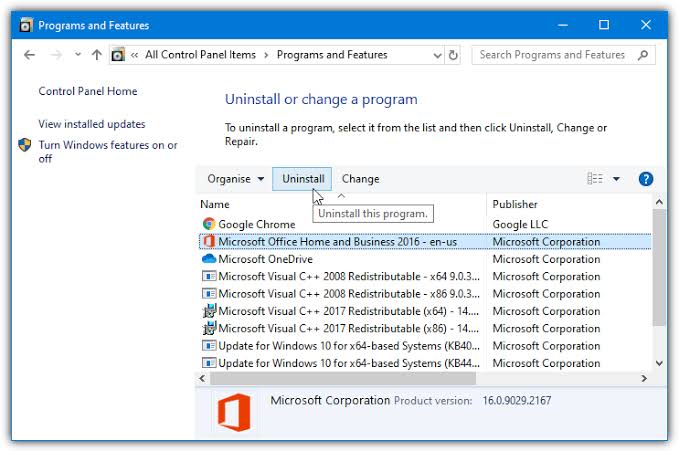
- Now, in the list of programs, look for your version of the Office package, then select it and finally click on “Change” at the top. Now you will see that a small screen will open showing you how you want to restore your Office. With quick recovery the time it will take will be much less but the recovery will be inaccurate, while with online recovery the time will be much greater, but at 90% your problem will be solved. The advice is to try the quick reset first if it does not solve the problem try the online one.
- Once you have chosen the recovery mode and clicked on “Restore”, a new screen opens where you will have to confirm your choice for the umpteenth time. At this point, the recovery of Office will start, which at 90% will solve the problem that Word does not open.
Install the latest update
If you can’t open word document windows 10 then you should try downloading and installing the latest updates for your version of Office. You may look for the Spell Check not working in Word.

If Microsoft Word won’t open on windows 10, sometimes you can go to Control Panel and find the latest updates. You can visit the Office Download Center and download service packs for Office, etc.
Remove old printer drivers.
If you had an old print driver on your Windows machine, and when you removed that driver, Word started working without any issues! If you are running Windows 10, you may need to download the latest version that is compatible with the operating system.
You can exclude individual printer drivers from going to the registry. Note that only going to printers and faxes and to remove the printer driver after deleting the printer.
Disable all extras
Sometimes an add-on is automatically installed by another program (such as Adobe, etc.), which may prevent word from crashing. In this matter, you can start your Microsoft Word in Safe Mode. Just click Start and then Run or if you are using Windows 7, just type the following command in the search box:
winword.exe / a
In Windows 10, press the Windows key + R. Now click on the Office button and click on Word Options. On the new version of Office, click File and then Options.
What’s the solution of Microsoft word won’t open on Mac
If you are a Mac OS user, sometimes you may face these types of errors.
- The Microsoft Word for Mac application has closed unexpectedly.
- Microsoft Word has encountered an error and needs to close.
- If you cannot open Microsoft Word due to this problem. Check with the developer to make sure MS Word works with this version of macOS.
Since MS Word is a widely used program, having some problem resolution is an essential skill. Today we are going to learn three tricks to solve the problem when Word for Mac doesn’t open. The solutions provided apply to all versions of Word.
Run Repair Disk Permissions
- Enter the Utility folder located in the Applications folder and open Disk Utility.
- From the list of volumes select the startup disk, and click on the SOS panel
- Click Repair Disk Backgrounds, and wait for the process to complete.
Remove Word preferences
- Open the ‘Library’ folder. You can open it in Finder by pressing COMMAND + Shift + g and insert ~ / Library in the window.
- Find a file named ‘Preferences.’
- Find the com.Microsoft.Word.plist file. Move it to the desktop.
Start the Word application and check if the problem occurred. If the problem exists, close the program and restore the com.microsoft.Word.plist file to its original location. And go to step 4.
- If the problem has been resolved, you can move the file to the trash.
- Exit all Microsoft Office programs, and open the Liberary> Application Support> Microsoft> Office> User Templates folder.
- Locate the file named Normal, and drag it to the desktop.
- Launch the Word application; the problem should be solved.
Try to open and repair Word
- Start Word, and in the File menu, click Open.
- In the Open dialogue box, select the file you want to open. Click the arrow on the Open button and choose ‘Repair.’
Recover deleted and lost Word on Mac
Don’t worry if the error causes data loss; you can recover the unsaved Word document on Mac from its temporary folder and save AutoRecovery. While for a deleted Word document, the easiest way is to use Mac data recovery software.
- Select the location where Word documents were lost and click the Scan button.
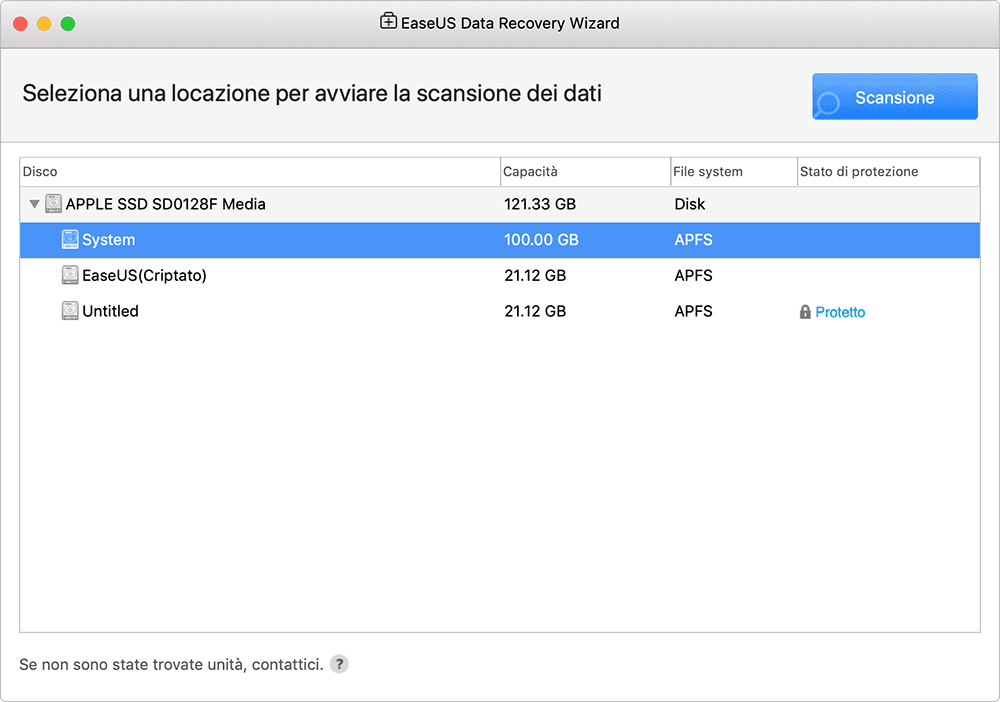
- The program immediately starts a scan of the selected volume. In the meantime, the scan results will be presented in the left panel.
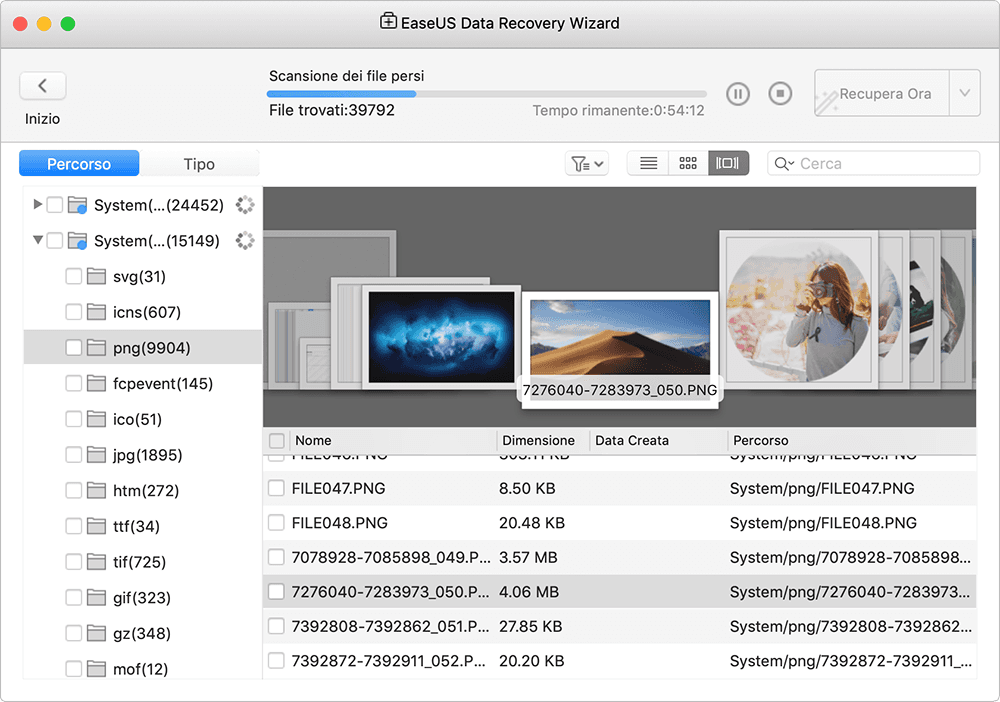
- Then, You can filter the files by location or file type. Select the files and click the Recover button to restore them
We know you are enjoying the 6 secret ways to solve the problem of Microsoft Word won’t open windows 10 & Macbook. So don’t forget to share with your friend and tweet. Enjoytechlife!