

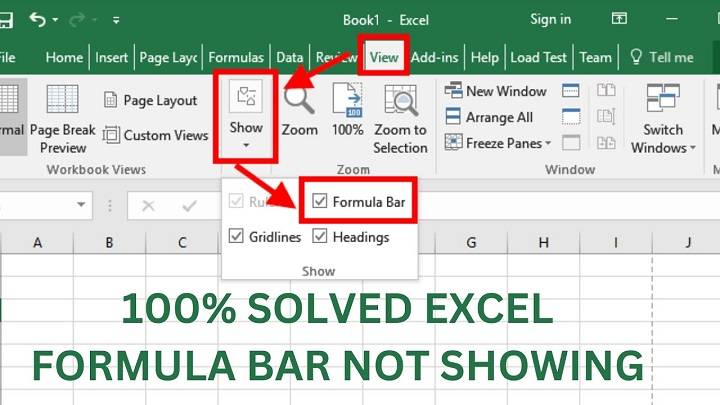
Microsoft Excel is a powerhouse when it comes to data manipulation, analysis, and calculation. Excel’s Formula Bar is a fundamental component that allows users to input, edit, and view formulas and cell contents with precision and ease. However, there may be instances where you encounter the frustrating issue of the Formula Bar not showing in Excel. Don’t worry; you’re not alone in facing this issue, and there are solutions to restore it in seconds. In this comprehensive guide, we will explore the reasons behind the missing Formula Bar and provide step-by-step solutions to get it back quickly.
Understanding the Formula Bar in Excel

Before we delve into troubleshooting the Formula Bar, let’s clarify what it is and why it is essential for your Excel experience.
What is the Formula Bar?
The Formula Bar in Microsoft Excel is a designated space located just below the toolbar and ribbon. It serves as a dynamic display area, providing crucial information about the content of the currently selected cell. Whether the cell contains a formula, text, or numeric value, the Formula Bar presents it clearly for the user.
One of its primary functions is to display the formula present in the active cell, allowing users to quickly review and edit complex calculations. This feature is invaluable for users working with large datasets or intricate mathematical operations, as it offers transparency and accessibility to the underlying calculations.
Moreover, the Formula Bar facilitates seamless data entry and editing. Users can directly input or modify the contents of the active cell by typing into the Formula Bar, providing a convenient alternative to directly editing cells. This feature enhances accuracy and efficiency, particularly when dealing with extensive spreadsheets requiring frequent updates or adjustments.
Furthermore, the Formula Bar offers additional functionalities such as cell referencing and autocomplete, which streamline the process of constructing formulas. Cell referencing enables users to incorporate values from other cells into their formulas, fostering dynamic and interconnected data analysis. Autocomplete suggests function and cell references as users type, reducing errors and accelerating formula creation.
Why is the Formula Bar Important?
The Formula Bar serves several critical purposes:
Data Validation: The Formula Bar supports data validation by highlighting syntax errors or invalid references within formulas, guiding users to rectify them promptly. This feature enhances data accuracy and reduces the likelihood of computational errors.
Autocomplete Functionality: The Formula Bar offers autocomplete suggestions as users type, assisting in formula construction and minimizing typing errors. This predictive feature speeds up formula creation and ensures consistency in formula syntax.
Clipboard Integration: Users can seamlessly copy and paste formulas between cells using the Formula Bar, streamlining workflow efficiency. This integration facilitates the reuse of complex formulas across multiple cells or worksheets without the need for manual retyping.
Multi-line Editing: The Formula Bar allows for multi-line editing, enabling users to view and edit lengthy formulas more comfortably. This functionality enhances formula readability and simplifies the modification of intricate calculations.
Dynamic Formula Preview: As users edit formulas within the Formula Bar, a dynamic preview feature displays the updated results in real-time, providing immediate feedback on formula changes. This capability empowers users to iteratively refine formulas and observe their impact without leaving the editing interface.
Undo/Redo Support: The Formula Bar includes undo and redo functionalities, allowing users to revert formula modifications or reapply changes as needed. This feature provides an additional layer of assurance and flexibility during formula editing sessions.
Formula History Tracking: The Formula Bar maintains a history of recently edited formulas, facilitating easy access to previously modified calculations. This tracking mechanism assists users in recalling and reusing formulas, reducing redundancy and promoting productivity.
Syntax Highlighting: The Formula Bar employs syntax highlighting to distinguish between different components of a formula, such as operators, functions, and references. This visual aid enhances formula comprehension and reduces the likelihood of syntax errors.
Collaborative Editing: In collaborative environments, multiple users can simultaneously edit formulas within the Formula Bar, with changes reflected in real-time. This collaborative editing capability fosters teamwork and enables efficient formula development within shared workbooks.
Customization Options: Users can customize the appearance and behavior of the Formula Bar to suit their preferences and workflow requirements. This flexibility empowers users to tailor the Formula Bar’s functionality to their specific needs, enhancing user satisfaction and productivity.
Now that we understand the importance of the Formula Bar, let’s investigate the common reasons why it might disappear and explore solutions to restore it promptly.
Common Reasons for the Missing Formula Bar
The Formula Bar in Excel is typically visible by default, but several scenarios can cause it to disappear. Here are some common reasons:
Formula Bar Disabled
In some cases, the Formula Bar might be disabled or turned off intentionally or accidentally.
Workspace Layout
Excel allows users to customize their workspace layout. Changes in layout settings or the use of certain Excel views, such as Full Screen or Page Layout view, can affect the visibility of the Formula Bar.
Excel Version Differences
Different versions of Excel may have variations in their default settings and interface elements. Some versions may display the Formula Bar differently or have it positioned elsewhere.
Now, let’s explore the solutions to these issues and restore the Formula Bar in seconds.
Solutions to Restore the Missing Formula Bar
Enable the Formula Bar

If the Formula Bar is disabled, you can quickly enable it by following these steps:
- Open Excel.
- Click on the “File” tab in the top-left corner of the Excel window.
- Select “Options” at the bottom of the navigation pane. This will open the Excel Options dialog box.
- In the Excel Options dialog box, click on the “Advanced” category on the left sidebar.
- Scroll down to the “Display options for this workbook” section.
- Ensure that the “Show formula bar” checkbox is checked. If it’s unchecked, click on it to enable the Formula Bar.
- Click “OK” to save your changes.
The Formula Bar should now be visible at the top of the Excel window.
Check Workspace Layout
If changes in the workspace layout are affecting the Formula Bar’s visibility, you can revert to a standard layout:
- Open Excel.
- Click on the “View” tab in the Excel ribbon.
- In the “Workbook Views” group, click on “Normal.” This will return your workspace to the default layout, ensuring the Formula Bar is visible.
Check Excel Version
If you are working with different versions of Excel, be aware that the placement and appearance of the Formula Bar can vary. Some versions may have it positioned differently or may display it in a compact mode.
- Familiarize yourself with the interface and layout of your specific Excel version. Check if the Formula Bar is positioned differently or if there are any version-specific settings related to its visibility.
- Ensure you are using the latest version of Excel available to you, as updates may address interface-related issues.
Additional Tips for Working with the Formula Bar
Now that you’ve successfully restored the Formula Bar let’s explore some additional tips for working with it effectively:
Maximizing Formula Bar Space
If you work with lengthy formulas or text entries, you can maximize the Formula Bar’s space by dragging its bottom border downward. This allows you to view more of the content without resizing the cell itself.
Navigating within the Formula Bar
To navigate within the Formula Bar, you can use the arrow keys on your keyboard. This is especially useful when editing long formulas or text entries.
Multiline Editing
The Formula Bar allows multiline editing, meaning you can press “Alt + Enter” to create line breaks within a cell’s content. This is helpful when entering lengthy explanations or notes.
Displaying Formulas
If you want to see the formulas in your worksheet instead of their results, you can toggle this feature on and off. Press “Ctrl + `” (the grave accent key, often located to the left of the “1” key) to switch between formula view and result view.
Error Handling
When a formula returns an error, the Formula Bar will display an error message to help you identify and resolve the issue. Clicking on the cell with the error will also highlight the problematic part in the formula within the Formula Bar.
Related Post:
Pavlov VR is Available in Oculus Quest
Pavlov VR for PS4 | Dive into Virtual Reality
Onward VR PS4 – Experience Virtual Warfare
The Formula Bar is an essential element of Microsoft Excel, facilitating precise formula input, content visibility, and formula editing. When it goes missing, it can disrupt your workflow and cause frustration. Fortunately, with the solutions provided in this guide, you can restore the Formula Bar in seconds, ensuring a seamless Excel experience.
Whether you inadvertently disabled the Formula Bar, encountered workspace layout issues, or experienced differences in Excel versions, the steps outlined here will help you bring back this vital tool. Additionally, the tips for working effectively with the Formula Bar will enhance your Excel proficiency and productivity.
Now that you’ve regained control of the Formula Bar, you can confidently work with formulas, enter and edit cell contents, and troubleshoot errors, all while maintaining a clear view of your data and calculations. Excel’s Formula Bar is your gateway to precision and efficiency, and it’s now at your fingertips once again.