


Windows is a prevalent operating system worldwide, which Microsoft markets. It’s the most popular computer-based operating system in the current world. The first Windows OS was released in the 80s, and the exact date was 20 November 1985. Till now, many versions of Windows have been released with new features to meet the needs of their users.
The latest version of windows is windows 11, which was released in September 2022. Installation time may vary for various reasons. You can upgrade it free from any windows 10 device that fulfills the windows 11 requirements. In that case, most users ask how much time Windows 11 take to install.
The Requirements to Install Windows 11
All devices can install windows 11 except devices that do not meet the Windows 11 system requirements. After completing the system requirements, the duration of the installation process may vary depending on various factors. Those factors mainly rely on the device hardware.
First, to install windows 11, we need capable devices that meet its system requirements. To choose capable devices, we need to be concerned about some hardware features of our devices which are given below.
- Processor:
First, to install windows 11, we need an SoC which is 64-bit compatible and has at least 2 cores. The processor must be fast enough to install, so the processor speed must be 1 gigahertz (GHz) or faster.
- RAM:
The device where we want to install windows must have enough RAM in it. The minimum RAM requirement to install it is 4 gigabytes (GB).
- Storage:
To install windows 11 on a device there requires 64 GB or a larger storage device. To properly work, there needs much free storage in a device because of their previous windows cash files and many other things.
- System Firmware:
Your device must have UEFI Secure Boot capable of installing windows 11. From the “advance” option of “troubleshoot,” you can access these settings easily.
- TPM:
The trusted Platform Module (TPM) of your device must have to be at least version 2.0; otherwise, it will not work. You can check it from the device security option and ensure it is selected in version 2.0.
- Graphics Card:
Graphics card is also a significant factor in installing windows 11. The device graphics card must be compatible with DirectX 12 or later with the WDDM 2.0 driver. This is enough to install it on your desired device.
- Display:
The device must have a high-definition (720p) display more significant than 9” diagonally. This must have been capable of 8 bits per color channel.
- Internet Connection and Microsoft Account:
During initial setup, you need an internet connection and a Microsoft account to use Windows 11 Pro and Windows 11 Home for personal. On the other hand, Windows 11 Home in S mode also requires internet connectivity in case of Switching a device.
For performing updates and taking advantage of some features, there need an internet connection and a Microsoft account. To install windows 11, your device must have to meet the requirements given above. The duration of the installation process can vary Depending on your device’s hardware condition; its time is not fixed.
How Much Time Windows 11 Take to Install – Things You Should Know
Usually, in ideal condition, it takes 15 to 20 minutes to install windows 11 on your device. But this is considering that you are not limited by your CPU, HDD/SSD, or RAM to get this insane install time. But when it comes to the installation time of windows 11 on different setups, there is no specific answer.
Although Microsoft has optimized and improved the process, several specific factors can affect your installation times. When you install windows 11, you need to know “how much time windows 11 takes to install” to properly utilize your time. The installation duration of windows 11 typically depends on some different factors, which are given below.
- Specs
The installation times can change depending on your device configuration and the resource you currently have. When it comes to windows 11 customization, setups, installs, partitions, and many other things processing time depends on your device specs.
If you are limited by your CPU, HHD/SSD, RAM, or other components, then it will take more than 30 to 40 minutes to install Windows 11 on your device. Sometimes this kind of significant limitation increases the duration of the installation process by more than 1 hour. Depending on how limited your resource, this time duration can vary.
You might have required more time due to your low-configuration device. Your RAM might be inefficient in processing it faster, or this installation process can be sluggish due to low CPU frequency. In one sentence, the specs of your device directly affect your install time of windows 11.
For better installation time and smooth performance, you should configure your device with the latest and high-end specs component.
- Network Speed
When trying to install windows 11 to your device over the cloud, bandwidth and network speed are other factors that affect the installation time. If you are using a slow network to download and install it, then it will lead to a higher installation time. Besides higher speed, you need a stable network connection for a lower install time.
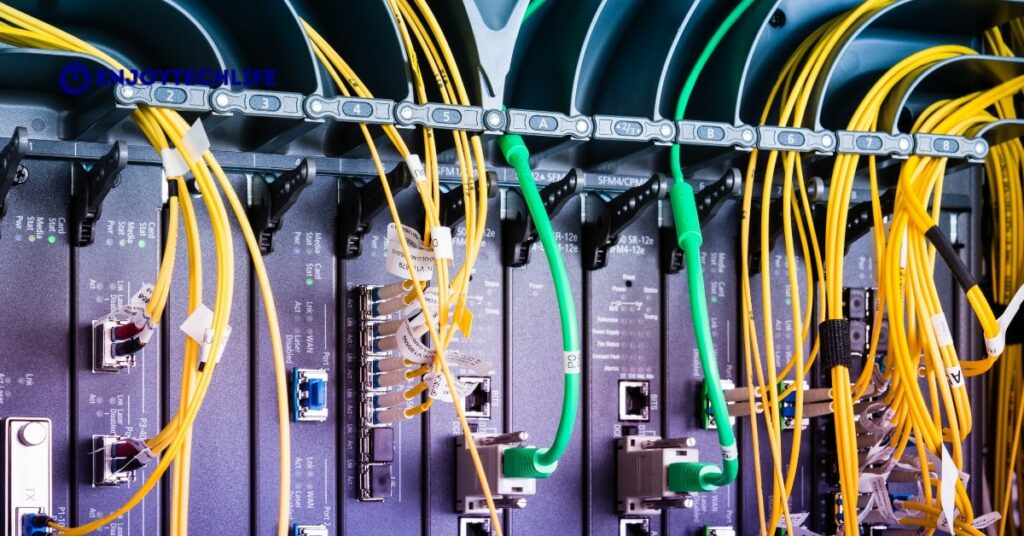
While downloading and installing windows 11, always ensure that you are using a stable and good network.
- Storage Type
The installation time can vary depending on your device storage type. For example, if it’s the latest SSD on your device, it will take approximately 15 minutes to install and update windows 11. On the other hand, for an old model device, it will take more than 20 minutes and sometimes even more than hours.
If your device is SSD-based, it will take less time than the HHD type to install windows 11. The installation process time depends on whether you use a USB Flash drive or a CD drive. Usually, a USB Flash drive is faster than a CD drive to install windows 11.
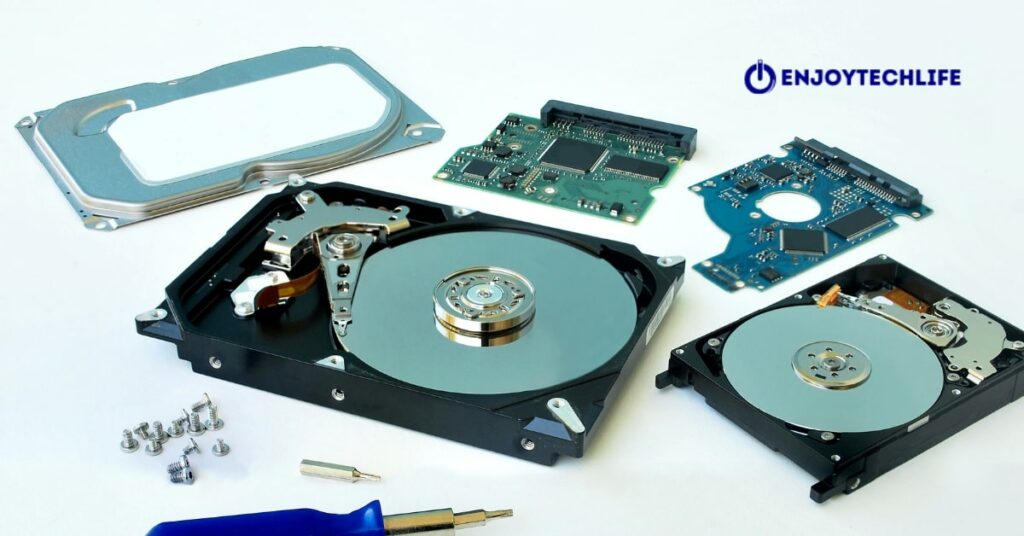
After several tests with different types of drives, there is an approximate result regarding installation time. If our hardware type is a combination of HHD and CD drive, then it will take around 1.5 hours to complete the installation process. Again, if it is HHD and USB Flash drive, it will take approximately 45 minutes.
With the combination of SSD and CD drives, the installation process will take around 45 minutes. The last combination is SSD and USB Flash drive which will take approximately 30 minutes. The actual installation time is less than the estimated time. The extra time is needed for the processing and restart of your device after installing windows 11.
So, for better install speed, you need to use different storage types on your device wisely.
- Server Availability
Sometimes Microsoft servers can face issues with downloading, especially with the new update or new version. This can increase installation time due to server availability. Sometimes this problem occurs in some areas, not all over the world. This prevents you to download and install windows 11 on your device for a while.

It’s not always a Microsoft server issue; sometimes, your ISP or DNS setting is also responsible for this issue. This is one of the factors affecting the installation time of windows 11.
FAQs
Why is Windows 11 installation process taking so long?
In some cases, the downloaded file may corrupt, causing your installation process to get stuck. To avoid such an issue, it is advised to use the authorized file in the installation process and keep your graphics driver updated.
How can I speed up windows 11 install speed?
It is suggested to keep your device component updated for better performance and speed.
Final Thoughts
It’s necessary to install windows 11 on your device for better user experience, features, and security than its predecessor. But it’s a big question when we are installing windows 11 how much time windows 11 take to install.
It needs to know the time required to install it cause always we don’t have enough time to keep an eye on it. Through the installation process, the user must select the setting he wants for a better experience. So, when you know the proper time of installation, you can perform it to save time to make it more user-friendly.