


Windows Explorer is a handy place to manage all of your files on your hard drive. But if you open many tabs at one time you may find the system working a bit slow. Windows Explorer has always had an issue with handling multiple windows. But now it’s ballooned into something much more serious. Newly-discovered issues are leading users to believe that their computers have a malware problem. Even when they aren’t.
The issue has been especially prevalent with Windows 7. But reports state that Windows Vista users are also seeing the “high CPU” message. The Windows Explorer High CPU issue has been known since May 2012.
How to Fix Windows Explorer Using High CPU
Windows Explorer can be a resource hog on some computers, but there are options to fix the problem. Let’s go over some of the most common causes and what users can do about them.
High CPU usage in Windows Explorer is frustrating and difficult to troubleshoot. But with this guide, you’ll get a fix for your problem and that will allow you to start again in no time. Here are some ways you can lessen its impact:
Some of these fixes will require restarting your system. Others will just require a quick change in settings.
- It’s important to note that if you want to fix this problem, your system must be free of junk files, temporary files, and other data clutter. If you haven’t cleaned up all these things already, clean them. As soon as you’ve cleaned up your system, you can apply any of the fixes below that will solve the issue.
- You can also reduce the amount of time that Windows Explorer is using high CPU by changing your screen resolution. The higher your screen resolution, the longer time it will take for Windows to do things and the more resources it will use. Conversely, the lower your screen resolution, the fewer resources it will use.
- Scan your computer to make sure that there is no malware issue.
Here are some methods of fixing higher CPU usage in Windows 10.
Method 1: Disable your Superfetch feature
Superfetch is a feature in Windows 10 that learns more about you and the apps you use gets them ready for you before opening and can lead to significant performance problems for your computer. This is how to disable Superfetch on Windows 10.
- Press the Windows key and R, type “services.msc” to open the Services window.

- Scroll down until you find Superfetch, then right-click it and choose Properties.
- In the Properties window, change the Startup type to Disabled and click Apply.

- Restart your computer for changes to take effect.
While this will disable Superfetch, it shouldn’t affect the other features in Windows 10. But if you find it’s causing troubles, you can always enable it again. Simply go back to the Services window and change the Startup type to Automatic and click Apply. Then restart your computer again. All done!
Method 2: Adjust the performance of Windows 10
You have an overworked processor and need help. These are the steps.
- The File Explorer Windows + E keyboard shortcut is the fastest way to access your PC! When you open it, you’ll notice that there are many options in the left column of your screen. One of these options will be “Properties”.

- Click on Properties, then select the “Advanced system settings” link in the left column of the new window you opened. It will show a list of different tabs.
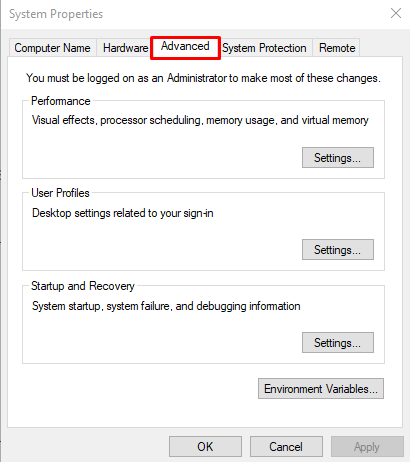
- On this list, click on “Settings…”, which will take you to another page with many different tabs.

- Choose “Performance option” from this new list, and make sure that the option below it says “Adjust for best performance”.
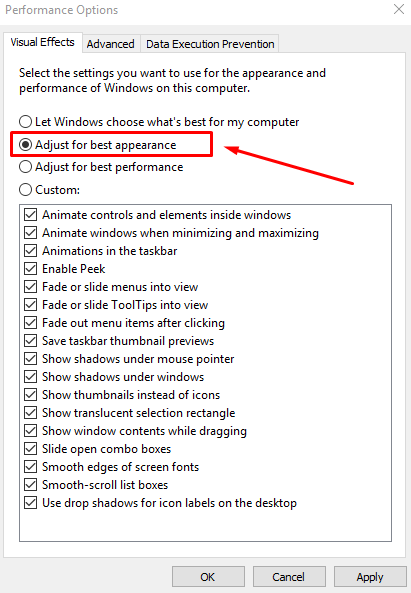
- Then press the “Apply” button and restart your computer.
When it boots up, you will see if this significantly increases your CPU usage. If it does, I’d recommend uninstalling all of the software that uses a lot of CPU in whichever program creates that excessive load and then using the steps above to optimize your system and fix that problem.
Most modern computers have a lot of programs that run in the background. If there is a lot that you don’t use regularly or at all, then this can cause your processor to work harder than it normally would. You should consider disabling or deleting to save precious processor resources.
Doing this can free up valuable processor resources. But it may affect the functionality of some applications. Here are a few programs that you should consider disabling or deleting – they are all optional. These suggestions are from the feedback from Windows experts. The experts who helped BetaNews users solve similar problems in the past.
Windows Explorer High Memory Usage Windows 10
– Windows Explorer runs on your Desktop, on top of the file system. It’s like the command prompt. When you launch or execute a program, it first loads into memory then launches it on your desktop. When you browse files, it provides a view of the contents on your computer.
– Windows Explorer can be considered a process, together with all other processes on your computer. In Task Manager, you can specify the CPU usage of a program or process.
– If you have a lot of programs running in the background, this might contribute to a high CPU usage in Windows Explorer. Also, if there are a lot of files on your computer and your hardware is not fast enough to keep up with all IO requests. This can also contribute to high CPU usage in Windows Explorer.
– When you browse your computer, Windows Explorer loads all the files in memory. Depending on the size of these files and their contents, this can contribute to high CPU usage.
– If you have slower hard disks, this can also contribute to high CPU usage in Windows Explorer.
Conclusion
There are different symptoms that show that your Windows Explorer is high in CPU usage. One of the most common symptoms related to this issue is when you cannot move files or folders around. (due to how long it takes the application to respond to your actions). This problem may occur because of a program being too taxing on your computer’s resources. But there may also be other underlying causes. If you have been experiencing these problems for an extended period. You should consider getting a new PC or running Windows 10 in a virtual machine setting.
For those who want to try and solve the issue on their own. Few methods might help you rule out some possible causes. But it will not solve some problems related to Windows Explorer High CPU usage.