


Computer audio and video have evolved significantly. Since then, technology has improved dramatically, allowing us to get as near as possible to really experience these things firsthand. While listening to various forms of music, you may have noticed that certain portions are extremely loud while others remain quiet at a consistent volume level.
This might irritate consumers since it requires a frequent audio level adjustment. The issue’s answer is as simple as the difficulty itself. This post will show you how to use Loudness Equalization Windows 11 to assist you with this problem.
Loudness Equalizer
A Windows function called Loudness Equalizer overcomes this issue by getting both noisy and extremely low-frequency sounds to a level of equal volume. When you’re using your desktop to listen to music or view movies, you don’t want to have to be adjusting the level all the time. It allows for a more even distribution of sound levels between loud and quiet sounds.
If the Enhancement tab is absent, the Loudness Equalization function may not be included in your Windows installation.
Fix Missing Loudness Equalizer Windows 11
This issue may be solved in various ways, as outlined below.
Update Sound Drivers
Your computer’s audio card may lack the necessary audio enhancing features, which is the most typical cause of the lack of Loudness Equalization. Fortunately, updating your computer’s sound drivers is a simple process requiring only a few keystrokes.
- To launch the Device Manager on your System, browse for it in the taskbar search field or push Windows+X to enter the Power User Menu and choose it afterward.
- Right-click Realtek(R) audio by selecting Sound, video, and game controllers from the popup menu that emerges.
- Select ‘Disable device’ from the menu. Because of this, the audio device on your System will no longer be working, as you can see by inspecting the mute button in the System Tray.

- Trace the Realtek audio device beneath Sound, video, and game controllers section and choose ‘Update Driver’ from the popup menu that shows.
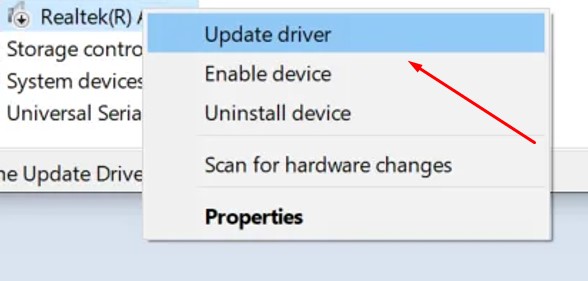
- There will be two choices for updating your drivers in the new box that pops up: either letting the System do it for you or manually going through your System to find them. The 2nd option is better.
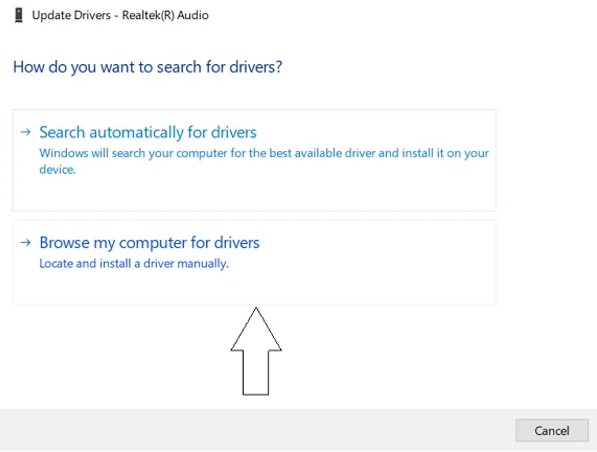
- Then choose “Let me pick from a list of available drivers on my computer”
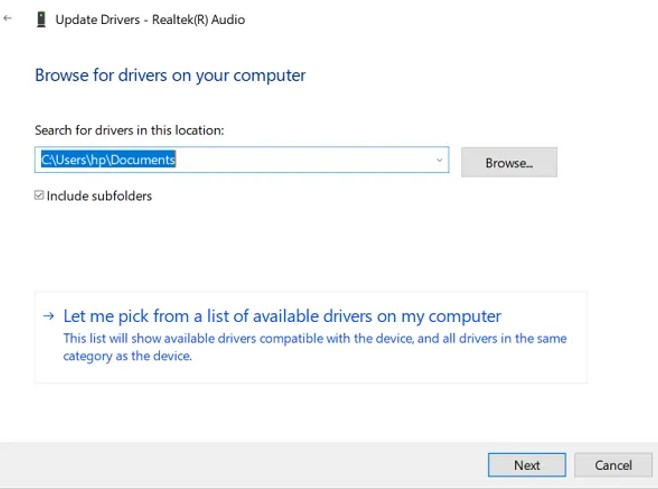
- This shows you a listing of drivers that are currently supported. Choose the ‘High definition audio device’ option.

- After that, you’ll get a warning message. Click on ‘Yes,’ and sit tight while the driver is upgraded.
Ensure that your PC has been restarted and that the Loudness Equalization function has been activated after the upgrade.
Install Third-party Applications
The procedure described above is typically sufficient, but if you are unable to employ Loudness Equalization, you nevertheless have several choices for modulating the different sound levels of your multimedia files.
There are a number of free programs that provide the same functionality as Windows 11/10’s Sound Enhancement options and more. Other freebies include Equalizer APO and RealTek HD Audio Manager, as well as various other options. In this post, we discuss the various free audio equalizers and their capabilities to make your listening and viewing experiences as pleasant as possible.
Enhance Audio on Windows 11
Windows 11’s improved audio may be found in the Settings panel. The vast majority of Windows 11’s configuration options may be found in a single place. This pane’s System Settings menu allows you to perform anything from creating new users to updating Windows itself. Using the Windows key + I combination or clicking on the Start button and selecting Settings as seen in the figure below, you can access System Settings on Windows:
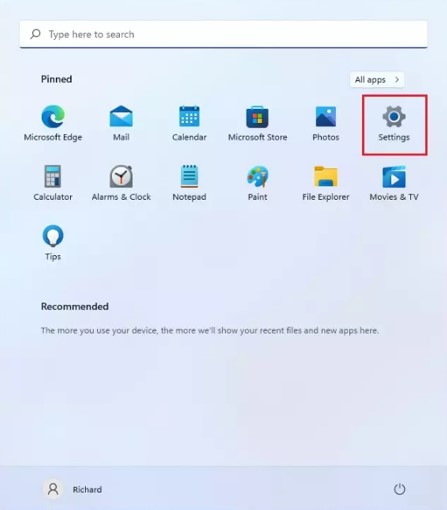
Alternately, you may look for Settings in the search field on the taskbar. To access it, tap on it. This is how the Windows Settings panel should appear. To change the sound settings in Windows, navigate to the right side of the Settings window, choose System, and then pick Sound.

Here, beneath Advanced, pick All sound devices as noted in the screenshot below.

Choose Speakers from the All sound devices drop-down options. In order to enable improved audio, hit the On/Off switch once you’re through with the process.
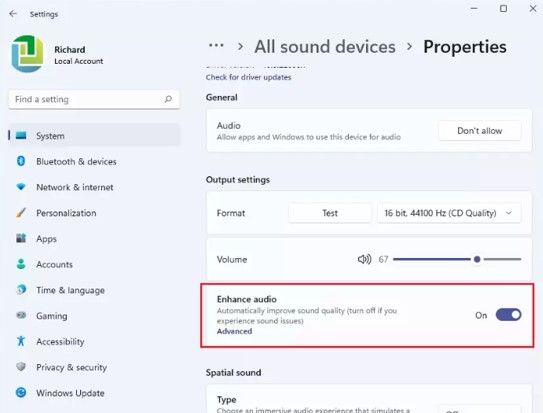
Selecting Advanced in the Enhanced Audio section will allow extra features such as the following:
- Low frequencies are boosted using the Bass Boost feature.
- In the case of Virtual Surround, the surround audio is encoded for transmission to Matrix-decoded stereo receivers.
- Room Correction adjusts for the acoustics of the room and the speaker.
- In order to lessen the apparent disparity in loudness, Loudness Equalization uses knowledge of human listening.
Test the audio setup by pressing the Apply and Exit buttons and enabling all the necessary options.
Fix Missing Audio Enhancement Tab
The Enhancements page is where you may tweak things like the Bass Boost, Virtual Surround, and Room Correction parameters, among other things. Updating your driver is a must if this advanced feature is unavailable to you.
The solution is as simple as upgrading or reinstalling your audio drivers. Even if you have a Windows 10 or 8.1 PC, this repair will still work for you.
Instructions to perform are as follows:
- Launch the Device Manager snap-in by pressing Windows key + R and typing “devmgmt.msc” in the Run command.
- Sound, video, and game controllers within Device Manager may be upgraded by choosing Update driver from the menu bar when you right-click on any audio devices or drivers.
- Make sure that you follow all on-screen steps after downloading and extracting the latest driver. Once the driver update is finished, verify whether this problem has been fixed.
Conclusion
Nothing is more annoying than experiencing audio problems when listening to your favorite music or viewing your favorite Netflix episode. This problem may be avoided if you use different audio boosting setups. Hopefully, this post about Loudness Equalization Windows 11 may assist you.