

EnjoytechlifeEnjoytechlife
  • Home
  • AI
  • Apps
  • Excel
  • Gadget
  • Software
  • Space
  • Word
Facebook Twitter Instagram
  • Privacy Policy
  • Contact Us
  • Sitemap
Facebook Twitter Instagram
EnjoytechlifeEnjoytechlife
  • Home
  • AI

    Removing Life Events on Facebook: A Step-by-Step Guide

    May 4, 2024

    Winning Charms: Unlocking the Mystery of Online Gamers Lucky Rituals

    April 18, 2024

    ทำไมจึงควรเลือกทะเบียนรถจากเว็บออนไลน์ในยุคนี้

    April 9, 2024

    DUNIA303: Tempat Perlindungan Anda bagi Pecinta Slot Online

    March 20, 2024

    Is Each Spin On Megaways Game Unique?

    March 1, 2024
  • Apps

    Cash Advance Apps That Don’t Use Plaid: A Comprehensive Guide

    December 3, 2023

    How to Block Apps on iPhone: A Comprehensive Guide to App Restriction

    December 3, 2023

    Selling Feet Pics Apps: A Comprehensive Guide to Monetizing Your Foot Fetish

    December 3, 2023
  • Excel

    Create Excel Legend Order Not Changing Its Original Copy

    January 28, 2023

    Learn Why Your Microsoft Excel Not Sorting All Columns Duly

    January 3, 2023

    How To Center a Cell Horizontally in Excel

    November 14, 2022

    How To Assign A Value To A Variable In Excel

    November 13, 2022

    How To Shorten Excel Sheet

    November 12, 2022
  • Gadget

    Leasing a MacBook Pro 16″: A Comprehensive Guide

    August 27, 2024

    Exploring Different Safety Mat Types

    August 7, 2024

    Unraveling the Mystery of Dr. Claw in Inspector Gadget: A Comprehensive Exploration

    December 3, 2023
  • Software

    Streamline Your Workforce with the Best Shift Management Software

    April 21, 2025

    Engineering Software in Education: 9 Benefits for Students and Educators

    March 27, 2024

    How Can a CRM Add Value to Your Organization

    March 25, 2024

    Best Practices in AI Software Development: Your Guide to Success with a Custom Software Development Company

    March 15, 2024

    Is SAS Faster Than SSD?

    February 13, 2024
  • Space

    Unveiling the Enchantment: Explore the Wonders of the Museum of Dream Space

    December 3, 2023

    Plan 9 from Outer Space: Unraveling the Mystery of the Cult Classic

    December 3, 2023

    Trials in Tainted Space Wiki: Unraveling the Galactic Adventures

    December 3, 2023

    Power Rangers in Space: Exploring the Galactic Adventures of the Legendary Heroes

    December 3, 2023
  • Word

    How to Split Pages in Word into Separate Files

    June 20, 2023

    How do I Delete a page in Word that won’t Delete Mac

    May 28, 2023

    How To Get Rid Of Footer In Word

    April 23, 2023

    How to Merge Multiple Pages into One Page in Word? A Complete Guide

    January 2, 2023

    How To Print Gridlines in Word

    December 7, 2022
EnjoytechlifeEnjoytechlife
Home»All»Unlocking the Power of Draft Watermarks in Microsoft Word: A Comprehensive Guide
All

Unlocking the Power of Draft Watermarks in Microsoft Word: A Comprehensive Guide

By RodneyMay 23, 20244 Mins Read
Facebook Twitter LinkedIn Telegram Pinterest Tumblr Reddit Email
Share
Facebook Twitter LinkedIn Pinterest Email

In the realm of document creation and collaboration, watermarks serve as powerful visual cues to convey important information, protect document integrity, and signify document status. Microsoft Word, as a leading word processing software, offers robust features for inserting watermarks into documents, including the ability to insert draft watermarks. In this comprehensive guide, we’ll explore the methods, techniques, and best practices for inserting draft watermarks in Microsoft Word, empowering users to enhance document management, communication, and presentation.

Understanding the Significance of Draft Watermarks
1. Document Status:

  • Draft watermarks signify that a document is in the preliminary stage of development or review, serving as a visual indicator of its unfinished or provisional status.

2. Document Protection:

  • Draft watermarks deter unauthorized copying, distribution, or use of documents by prominently marking them as drafts, thereby protecting intellectual property and confidentiality.

3. Communication Tool:

  • Draft watermarks facilitate clear communication among collaborators and stakeholders by conveying important information, such as document version, ownership, or intended use.

Methods for Inserting Draft Watermarks in Microsoft Word

1. Built-in Watermark Options:

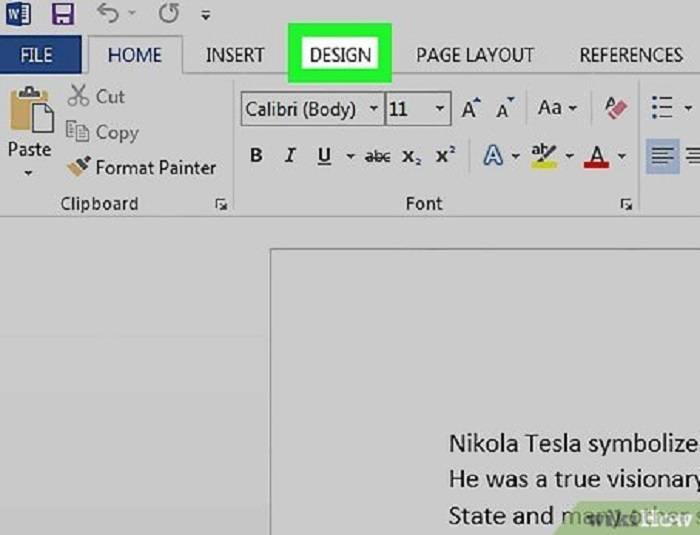
  • Utilize Word’s built-in watermark options to insert pre-designed draft watermarks with one-click convenience, accessible from the “Design” tab in the ribbon toolbar.

2. Custom Watermark Creation:

  • Create custom draft watermarks in Microsoft Word by inserting text or images directly into the document header or footer and formatting them according to preferences.

3. Watermark Templates:

  • Explore online resources or templates for draft watermarks in Microsoft Word, offering pre-designed watermark graphics or text layouts for easy insertion and customization.

Benefits of Using Draft Watermarks in Word

1. Document Identification:

  • Draft watermarks help distinguish preliminary or unofficial versions of documents from final or official versions, reducing confusion and ensuring clarity in document management.

2. Visual Consistency:

  • Consistently using draft watermarks across documents maintains visual consistency and coherence, reinforcing document status and facilitating efficient communication.

3. Document Security:

  • Draft watermarks enhance document security by discouraging unauthorized use or distribution of documents and reinforcing awareness of document ownership and confidentiality.

Best Practices for Draft Watermark Usage in Word

1. Clarity and Legibility:

  • Ensure that draft watermarks are clear, legible, and prominently displayed to convey information effectively without detracting from document readability.

2. Relevance and Appropriateness:

  • Select draft watermarks that are relevant and appropriate to the document content, purpose, and audience, avoiding distracting or irrelevant visual elements.

3. Consistent Application:

  • Apply draft watermarks consistently throughout documents or document templates to maintain uniformity and professionalism in document presentation and communication.

Advanced Techniques for Draft Watermark Mastery

1. Custom Graphic Watermarks:

  • Create custom graphic watermarks in Microsoft Word using images, logos, or symbols to personalize draft watermarks and align them with branding or visual identity standards.

2. Conditional Watermarking:

  • Implement conditional watermarking techniques in Word using macros or document properties to automatically insert draft watermarks based on specified criteria, such as document status or authorship.

3. Collaborative Workflows:

  • Integrate draft watermarking into collaborative document workflows, such as version control systems or document management platforms, to streamline document review, feedback, and approval processes.

Related Post:

Unlocking the Power of Factorials in Excel: A Comprehensive Guide

Mastering Pivot Table Removal in Excel: A Step-by-Step Guide

Mastering Curved Text in Microsoft Word: A Comprehensive Guide

In the dynamic landscape of document creation and collaboration, draft watermarks serve as invaluable tools for enhancing document management, communication, and security in Microsoft Word. By mastering the methods, techniques, and best practices outlined in this guide, users can leverage draft watermarks to convey important information, protect document integrity, and facilitate efficient collaboration and communication. Whether marking preliminary drafts, protecting sensitive information, or reinforcing document ownership, the strategic use of draft watermarks empowers users to enhance document communication and presentation with confidence and professionalism. Embrace the power of draft watermarks in Microsoft Word, and unlock new possibilities for effective document management and collaboration in your professional and personal endeavors.

Share. Facebook Twitter Pinterest LinkedIn Tumblr Email
Previous ArticleUnlocking the Power of Factorials in Excel: A Comprehensive Guide
Next Article Mastering Index Creation in Microsoft Word: A Comprehensive Guide
Rodney

Hi, I'm Rodney—tech enthusiast, gadget lover and the voice behind EnjoyTechLife.com. I break down complex tech into simple, actionable tips so you can get the most out of your digital life. Let's explore the future, one post at a time.

Related Posts

What Today’s Farmers Need to Know About Connected Agriculture

January 28, 2026

How Best Money Gaming Site Manage Real Time Interaction

January 1, 2026

The Rise of Interactive Digital Experiences in the Modern Online World

December 27, 2025

Exploring the Exciting World of Game and Gacor Thailand

December 11, 2025

Simple Tips for Managing Mobile Games Efficiently

November 19, 2025

The Allure of Mahjong Money Games in Modern Online Gaming

November 9, 2025
Popular Now

Smart Tools for Smart Makers: How Tech Is Changing DIY and Home Innovation

February 10, 2026

How Smart Software Is Changing the Way We Design and Upgrade Homes

February 10, 2026

What Today’s Farmers Need to Know About Connected Agriculture

January 28, 2026

How Best Money Gaming Site Manage Real Time Interaction

January 1, 2026

The Rise of Interactive Digital Experiences in the Modern Online World

December 27, 2025
About Us

Enjoytechlife is a technology blog. I am passionate with technology for this reason start this blog to share my view and knowledge with people who are interested in tech. Enjoytechlife!

For Any Inquiries

Contact : [email protected]

Top Picks
Tech

Smart Tools for Smart Makers: How Tech Is Changing DIY and Home Innovation

By RodneyFebruary 10, 2026
Follow Us
  • Facebook
  • Twitter
  • Pinterest
  • Instagram
  • YouTube
  • LinkedIn
Facebook Twitter Instagram Pinterest
  • Privacy Policy
  • Contact Us
  • Sitemap
Enjoytechlife.com © 2026 All Right Reserved

Type above and press Enter to search. Press Esc to cancel.