

In the post, you will discuss how to create a sorting button on a spreadsheet used in Excel.
Excel spreadsheets are very helpful when it comes to organizing data and coming up with useful relationships between different sets of information. However, there are limitations to using Excel as just a calculator or organization software. One way that an Excel sheet may not be optimal for your needs is if you would like to be able to sort through columns A-D in order of ascending or descending order.
Armed with the following steps, you will be able to add a sort button to Excel workbooks of your own and get the job done with a little less effort.
- How To Add A Sort Button To Excel Spreadsheet
- Step 1: Open Your Excel Workbook and Access the Quick Access Toolbar
- Step 2: Select Customize Quick Access Toolbar
- Step 3: Create and Name Your New Quick Access Toolbar Button
- Step 4: Select the Button Type from the drop-down menu
- Step 5: Choose a Button Location on Your Quick Access Toolbar
- Step 6: Add the Sorting Button to Your Excel Spreadsheet
- Step 7: Access the Sort Button and Select the Operation
- Step 8: Select Your Operations to be Performed on Your Data Column
- Adding Short Button to Excel Spreadsheets
- Conclusion
How To Add A Sort Button To Excel Spreadsheet
A simple way to add a sorting button to your Excel spreadsheet is to use the new Quick Access Toolbar. This bar can be used to quickly access certain commands that you may find useful and want to utilize regularly. They do not take up a lot of space on the bar and are not as intrusive as buttons that can be added to the toolbar at the top of your program window.
Step 1: Open Your Excel Workbook and Access the Quick Access Toolbar
The first step is to open your spreadsheet. Click on the File tab of your program window to access a list of program options, then select Options. In the ensuing dialog box, select the Excel Options button on the left side of the dialog box.
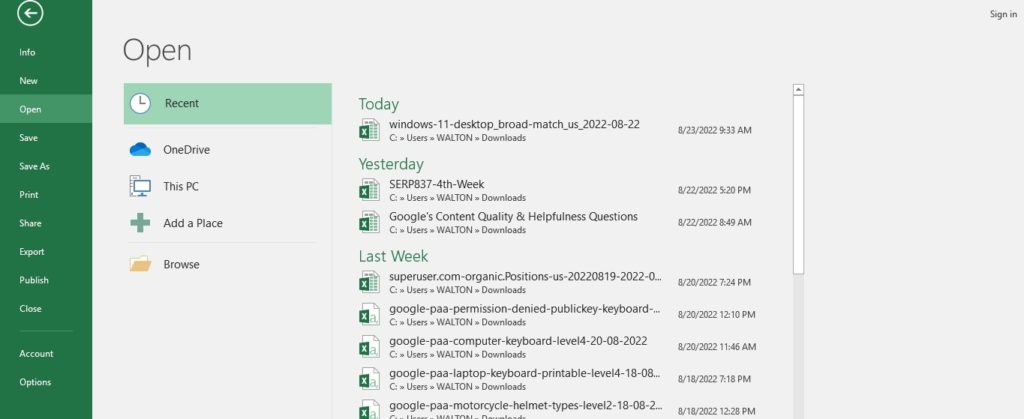
Note: If you cannot find this button, it may be listed under some other heading such as File Locations or Compatibility Mode Settings.
Step 2: Select Customize Quick Access Toolbar
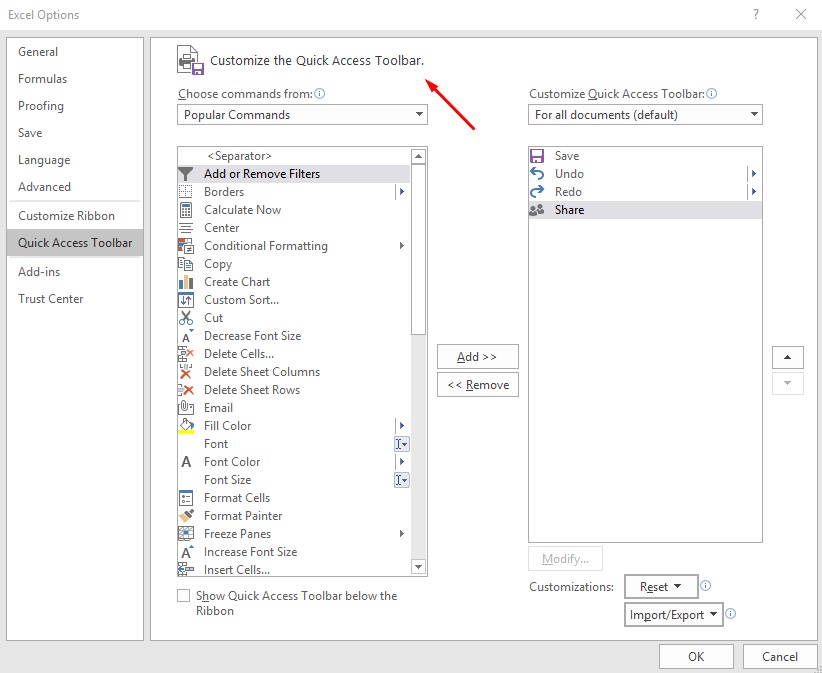
In the new dialog box, select the Quick Access Toolbar tab to see the available options. The first option on this tab is called New, so click on it to access a new dialog box with some additional options that relate to adding a button on a toolbar.
Step 3: Create and Name Your New Quick Access Toolbar Button
The remaining sections of the dialog box allow you to create a new button and give it some extra descriptive data. The button you create will be used to sort a column with data. The name of your button should reflect the column that you want to sort, such as Sort A Column.
Step 4: Select the Button Type from the drop-down menu
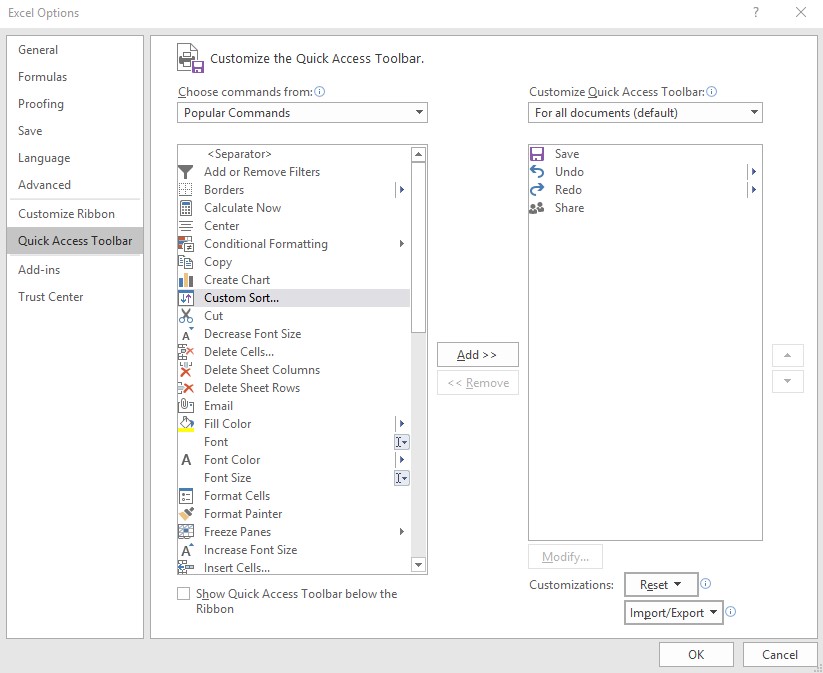
You may select from among those available on the drop-down menu.
Step 5: Choose a Button Location on Your Quick Access Toolbar
The final section of the dialog box allows you to choose where you would like to place your new button. We suggest using one of the spots near the center of the toolbar so that it does not get lost in an area with several other buttons. Then click OK.
Step 6: Add the Sorting Button to Your Excel Spreadsheet
Now that you have defined your new button, it is time to add it to your Excel spreadsheet. Click on the tab on the left side of your program window and select New from the drop-down menu. Then select Other from the drop-down menu and choose Button from this newly accessed dialog box. Then give it a name like Sort A Column, and click OK.
Step 7: Access the Sort Button and Select the Operation
To access the new button, click on it. You will see a small X icon that you can select by clicking on it once or twice.
Step 8: Select Your Operations to be Performed on Your Data Column
Excel default operations include sorting, copying information, deleting information in your spreadsheet, and inserting a row before one or after another. Select any of these options so that you can sort your column of data in either ascending or descending order.
Note: The column will still be sorted in numerical order by default.
Adding Short Button to Excel Spreadsheets
The sort button in Excel is a feature that allows you to organize your data in the table by a number of different information, such as alphabetical order, numerical order, or name. Sometimes this can be helpful if you want to perform an analysis of the information and find out which cells have the most or fewest occurrences.
However, sometimes it would be useful to allow your users to sort the spreadsheet by two columns at the same time. This could be useful if you wanted to sort a list by a specific column and then have the sorted list sorted by another column as well. Luckily you can add a sort button to your Excel spreadsheet to let your users sort multiple columns from the same spreadsheet!
If you are not familiar with how to use the sort button in Excel, it is pretty easy once you know how.
- After you have selected at least two cells and highlighted them
- Select Sort from the menu. Then simply click the arrows next to the other two cells that you wish to sort and select what you want to sort them by.

- If you wish they can be sorted alphabetically, numerically, or by name then just type those criteria in the sort bars. You can choose whatever criteria you will use in each of these fields.
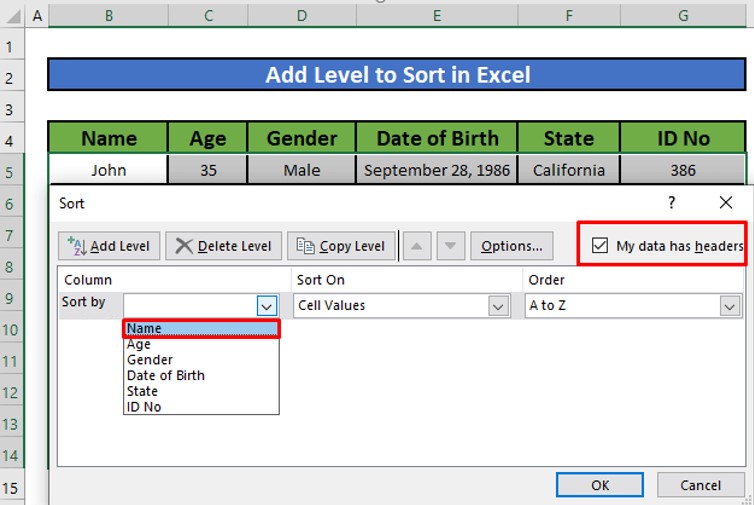
- After you have added your criteria, click on your new button and it will be added to your table.
- If you add more than one button you can then sort your information in either ascending or descending order. You can right-click on the button & select which data you will sort by.
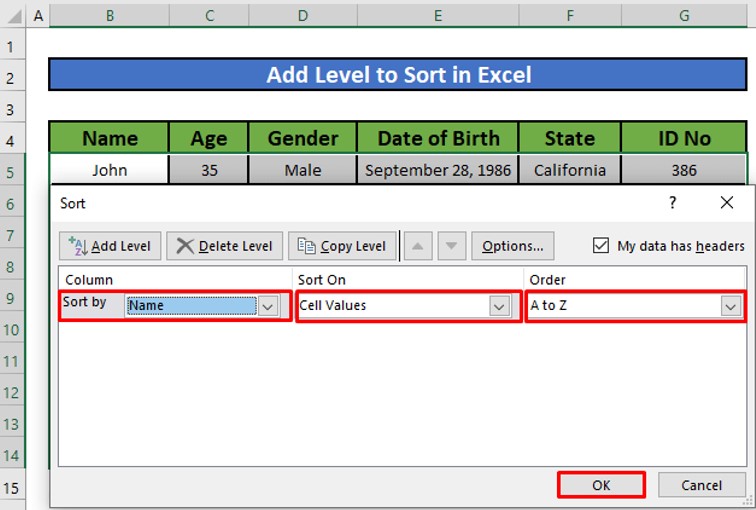
- If you would like to add multiple sort buttons, you can do that very easily.
- First, you need to highlight two cells and select the menu option Sort in your Excel spreadsheet.
- Then pick out which two columns you want to sort in each of these buttons. You will then be able to right-click on either button and change them around however you wish so long as they are both different criteria.
- If you don’t want the buttons to be different, you can uncheck the option Sorted By Different Criteria, and then the buttons will both be sorted alphabetically.
Conclusion
Using Excel spreadsheets for large amounts of data can be difficult when you don’t have a sort button to apply different criteria. Thankfully, it’s easy to add this feature to your spreadsheet. With a few basic formulas and a little bit of graphics knowledge, you’ll soon be able to sort your Excel spreadsheets as easily as you sort your documents in Microsoft Word.